

A workflow is a chain of tools that runs in one go, for example Merge then Compress then Add page numbers. Save it once, then run it on any number of files.
There are two kinds, both in Account › Workflow Automation › Workflows:
- Tool workflows (presets): a list of steps you run on files you choose. See How to create a workflow.
- Automated workflows: a canvas with a trigger, steps, branches and approvals, that can start by itself. See How to build an automated workflow.
Before you start
- Saved workflows are part of Pro (25 saved workflows) and Business (unlimited). On Free you can run the ready-made Submission presets.
- In a Business workspace, owners and admins can share a workflow with everyone as a Team preset.
- In a Business workspace, building and publishing workflows needs the Build and publish workflows permission. Owners and admins have it; members don't, unless a custom role gives it to them. Deciding approvals needs Approve or reject.
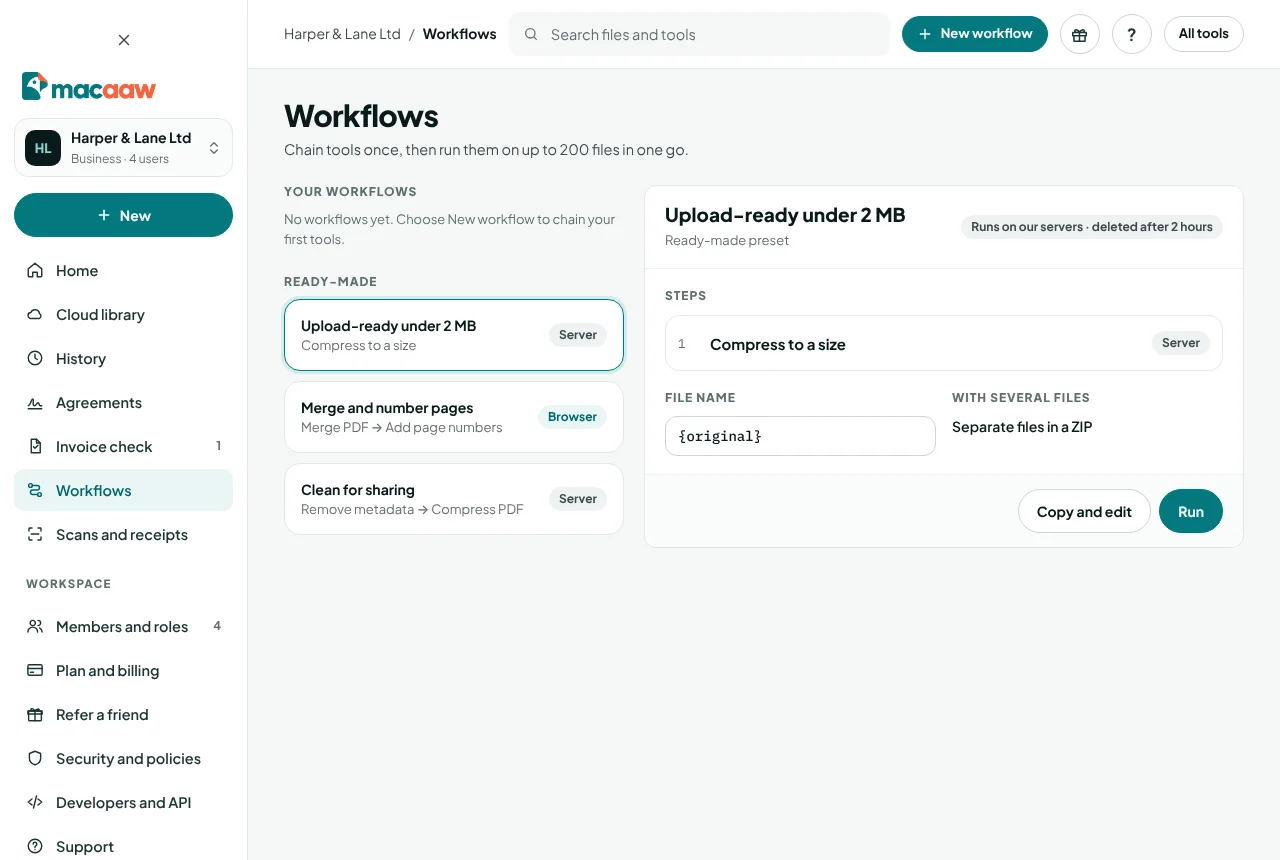
How to create a workflow
- In the sidebar, choose Workflows, then New workflow (or choose New › New workflow).
- Type a Workflow name.
- Choose + Add a step and pick a tool in Choose a tool…. Add more steps the same way.
- Select a step to set its options. Drag a step, or use Move up and Move down, to change the order.
- Under When several files are added, choose Merge into one PDF or Separate files in a ZIP.
- Set the Output file name. You can insert details such as the original name or the date with the tokens shown.
- In a Business workspace, tick Share with your workspace to make it a team preset. Members can run it; only admins and you can edit it.
- Choose Save workflow.
If two steps cannot follow each other, Macaaw explains why, for example "Step 3: Compress PDF needs a PDF, but the step before makes a ZIP". Change the order or remove a step.
To try a workflow before using it for real, choose Test on a sample file. Workflows that use our servers must be saved before you can test them.
How to run a workflow
- Choose the workflow from your lists.
- Choose Choose files and pick your files. The screen shows how many files and their total size, and the limit on your plan.
- Choose Run on your files. Each step shows its progress, for example "Step 2 of 3: Compress PDF…".
- When it has finished, download the result. For server workflows, Open result takes you to the result page.
The workflow tells you where it runs before you start: Runs in your browser · never uploaded, or Runs on our servers, with how long files are kept.
How to change, copy or delete a workflow
- Edit opens the steps again; choose Save changes when you are done, or Discard.
- Copy and edit makes your own copy of a ready-made or team preset.
- Delete removes the workflow for everyone it is shared with. Your job history is not affected.
How to build an automated workflow
- Choose New automated workflow. The Workflow editor opens with a canvas.
- Choose the trigger, under Starts when:
- Someone presses Run now;
- On a schedule (every so many hours, at least 1);
- A form is submitted (any form, or only one form): see Build a form and collect responses;
- A file is added to a library folder;
- A web hook is called. Choose Create a new secret and copy it straight away: it is shown only once, and calls are refused until a secret is set.
- Choose Add a step and pick what it does: a PDF tool, a Condition (which splits the run into paths), an Approval, a Notification, an Integration (such as Slack or cloud storage), or an AI step when the AI tools are switched on.
- Connect each step to what happens next. Under Check before saving, Macaaw lists anything missing, for example "Connect this step to what happens next."
- Choose Save new version. Each save is a new version of the workflow; runs that already started keep the version they started with.
Each run is saved step by step, so it carries on after a restart.
How to follow a run
Open the workflow and choose Run history. Open a run to see its Run timeline: each step, how long it took, which path a condition chose, and why a step failed. To stop a run, choose Cancel run. A cancelled run stops, its files are deleted and nothing is counted.
How to decide approvals
When a run reaches an Approval step, the people it names are told. They open Account › Workflow Automation › Approvals (also on their Dashboard and in the Macaaw phone and desktop apps), look at the request and choose Approve or Reject, with a comment if they like. The run then follows the path for that decision.
An approval waits for 72 hours unless the workflow sets another time (up to 720 hours). Emails about approvals never include file names or contents.
If something goes wrong
- "You have reached the number of saved workflows on your plan." Delete a workflow you no longer use, or move to Business for unlimited workflows.
- "Saved workflows are part of Pro and Business." On Free you can still run the submission presets.
- A step failed. The message names the step and the reason, for example a password-protected PDF. Fix the file and run the workflow again.
- "Your plan has ended. Saved workflows are read-only…" Choose a plan again within 90 days to edit them.
- A run says "Waiting for review". One of its files is held for a check. The run carries on once the check is done.
- The web hook trigger refuses calls. Create a secret for it and send it with each call.
- "New automated workflow" is missing. Your role in the workspace does not include Build and publish workflows. Ask an owner or admin.
Vanliga frågor
Can I use workflows on the Free plan?
You can run the ready-made submission presets. Creating and saving your own workflows is part of Pro and Business.
Does a workflow upload my files?
Only if one of its steps needs our servers. A workflow made only of browser tools runs on your device and never uploads anything; the screen tells you which kind it is before you run it.
What happens to my workflows if my plan ends?
They become read-only and are kept for 90 days in case you come back.
Do my old workflows still work?
Yes. Workflows saved before automated workflows arrived keep running exactly as before. You can open each one on the canvas too.
Why can't I build a workflow in my Business workspace?
Building and publishing workflows is for owners and admins, and for custom roles that include "Build and publish workflows". Members can still run the workflows shared with them.