

A workflow is a chain of tools that runs in one go, for example Merge then Compress then Add page numbers. Save it once, then run it on any number of files.
Before you start
- Saved workflows are part of Pro (25 saved workflows) and Business (unlimited). On Free you can run the ready-made Submission presets.
- In a Business workspace, owners and admins can share a workflow with everyone as a Team preset.
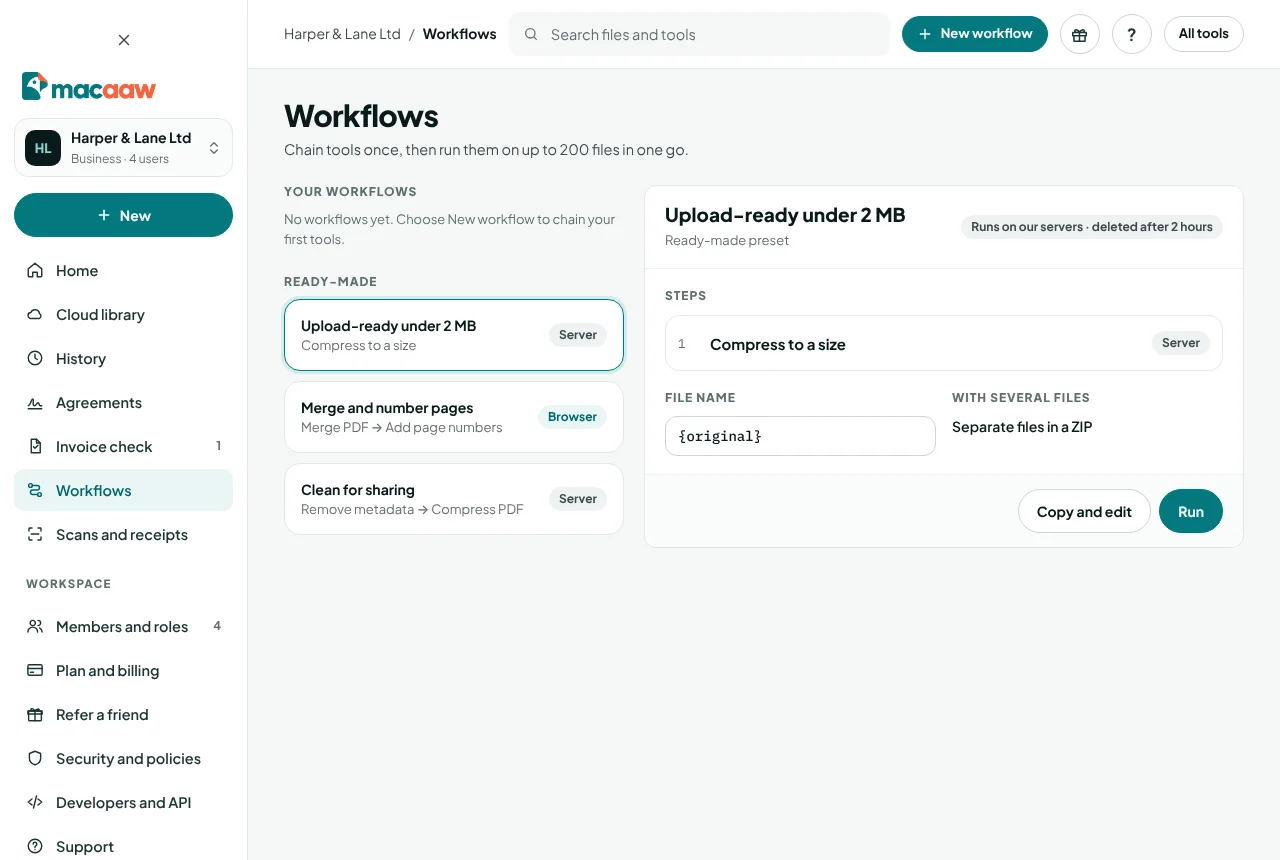
How to create a workflow
- In the sidebar, choose Workflows, then New workflow (or choose New › New workflow).
- Type a Workflow name.
- Choose + Add a step and pick a tool in Choose a tool…. Add more steps the same way.
- Select a step to set its options. Drag a step, or use Move up and Move down, to change the order.
- Under When several files are added, choose Merge into one PDF or Separate files in a ZIP.
- Set the Output file name. You can insert details such as the original name or the date with the tokens shown.
- In a Business workspace, tick Share with your workspace to make it a team preset. Members can run it; only admins and you can edit it.
- Choose Save workflow.
If two steps cannot follow each other, Macaaw explains why, for example "Step 3: Compress PDF needs a PDF, but the step before makes a ZIP". Change the order or remove a step.
To try a workflow before using it for real, choose Test on a sample file. Workflows that use our servers must be saved before you can test them.
How to run a workflow
- Choose the workflow from your lists.
- Choose Choose files and pick your files. The screen shows how many files and their total size, and the limit on your plan.
- Choose Run on your files. Each step shows its progress, for example "Step 2 of 3: Compress PDF…".
- When it has finished, download the result. For server workflows, Open result takes you to the result page.
The workflow tells you where it runs before you start: Runs in your browser · never uploaded, or Runs on our servers, with how long files are kept.
How to change, copy or delete a workflow
- Edit opens the steps again; choose Save changes when you are done, or Discard.
- Copy and edit makes your own copy of a ready-made or team preset.
- Delete removes the workflow for everyone it is shared with. Your job history is not affected.
If something goes wrong
- "You have reached the number of saved workflows on your plan." Delete a workflow you no longer use, or move to Business for unlimited workflows.
- "Saved workflows are part of Pro and Business." On Free you can still run the submission presets.
- A step failed. The message names the step and the reason, for example a password-protected PDF. Fix the file and run the workflow again.
- "Your plan has ended. Saved workflows are read-only…" Choose a plan again within 90 days to edit them.
Frequently asked questions
Can I use workflows on the Free plan?
You can run the ready-made submission presets. Creating and saving your own workflows is part of Pro and Business.
Does a workflow upload my files?
Only if one of its steps needs our servers. A workflow made only of browser tools runs on your device and never uploads anything; the screen tells you which kind it is before you run it.
What happens to my workflows if my plan ends?
They become read-only and are kept for 90 days in case you come back.