

Your profile, sign-in methods, passkeys, two-step sign-in and the devices you are signed in on are all on one page: Profile and security. Open it from Security and policies in the sidebar, or from Your profile and security in the account menu.
Before you start
- These settings are yours alone. Rules for a whole Business workspace, such as requiring two-step sign-in, are set by its owner and admins (see Members, roles and policies).
- To turn on two-step sign-in you need a password on your account and an authenticator app on your phone, such as Google Authenticator, Microsoft Authenticator or 1Password.
- To add a passkey you need an up-to-date browser on a phone, tablet or computer with a fingerprint reader, face recognition or a screen lock PIN, or a security key. For your safety you also need to have signed in within the last hour.
How to sign in
- Go to Sign in.
- Choose Continue with Google or Continue with Microsoft if you created your account that way. Otherwise type your Email and Password and choose Log in.
- If you use two-step sign-in, type the 6-digit code from your authenticator app and choose Verify.
If you have added a passkey, choose Sign in with a passkey and confirm with your fingerprint, face or device PIN. You do not type your email address or password. Many browsers also offer your passkey as soon as you click in the Email box.
To sign in without your password, type your email address and choose Email me a sign-in link. The link in the email Your Macaaw sign-in link works once and expires after 15 minutes.
How to reset a forgotten password
- On the sign-in page, choose Forgot it?.
- Type your email address and choose Send reset link.
- Open the email, choose the link, type a new password (at least 10 characters) and choose Save new password.
We check new passwords against known data breaches, so a common or leaked password is refused.
How to change your name, language or password
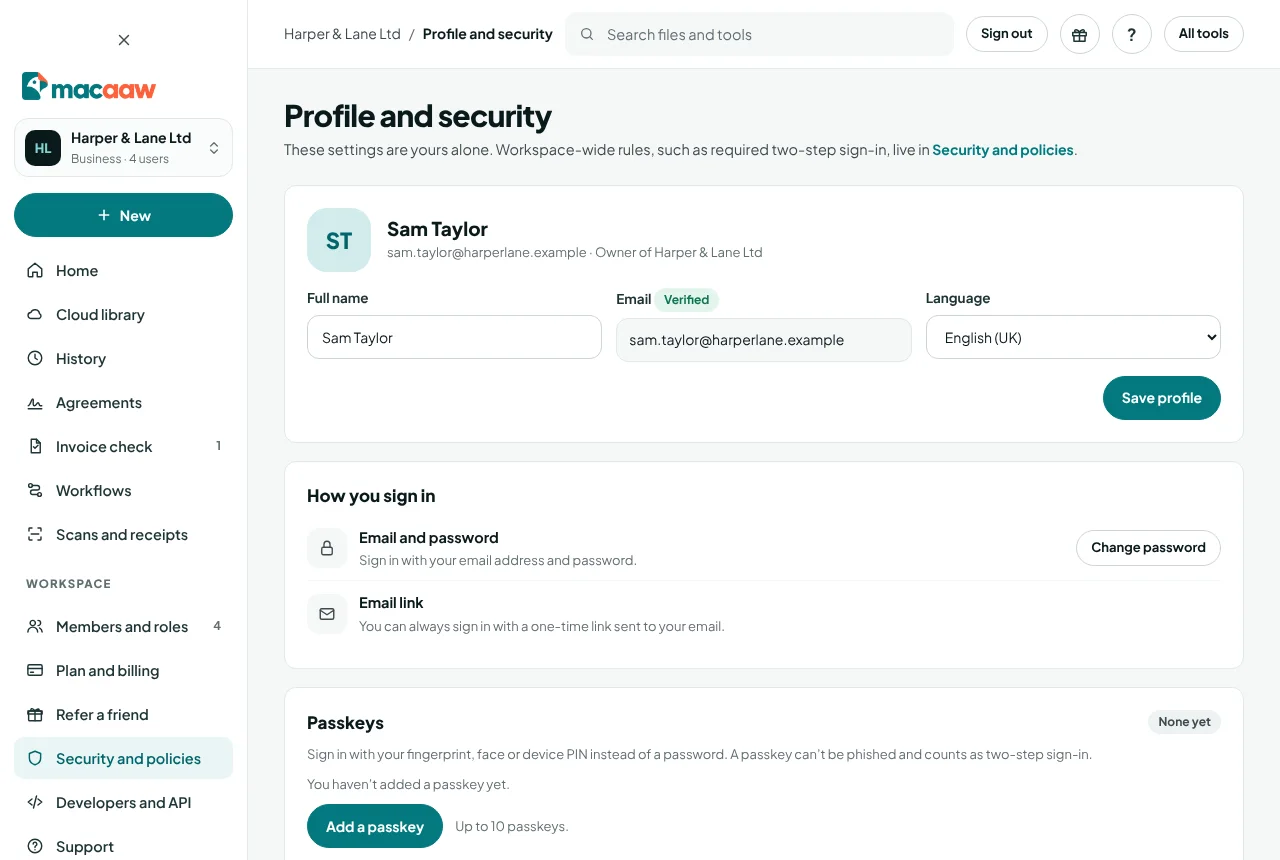
- Open Profile and security.
- Change Full name or Language, then choose Save profile. The language you choose is used for the website and our emails.
- To change your password, choose Change password under How you sign in, fill in Current password, New password and Confirm new password, then choose Change password.
Changing your password signs you out everywhere else.
How to turn on two-step sign-in
- Open Profile and security and find Two-step sign-in.
- Choose Turn on, type your password in Confirm with your password and continue.
- Add Macaaw to your authenticator app with the link shown, or type the key by hand.
- Save the recovery codes somewhere safe, for example in a password manager. Each one works once if you lose your phone.
- Type the 6-digit code from the app and choose Verify and turn on.
From now on Macaaw asks for a code each time you sign in. If you signed up with Google or Microsoft and have no password yet, choose Forgot it? on the sign-in page to set one first.
How to add a passkey
A passkey lets you sign in with your fingerprint, face or device PIN instead of a password. It is stored on your device or in your password manager, only works on Macaaw, and counts as two-step sign-in.
- Open Profile and security and find Passkeys.
- Choose Add a passkey.
- If you like, give it a Name, for example "Work laptop", so you can tell your passkeys apart.
- In Where to save it, leave Let my browser choose, or choose This device or A security key or another phone.
- Choose Create passkey and follow your browser's prompt.
You can have up to 10 passkeys. Each one shows when it was added and last used.

How to rename or remove a passkey
- Open Profile and security and find the passkey under Passkeys.
- Choose Rename, type the new name and choose Save; or choose Remove and confirm.
- After removing one, also delete it from the device or password manager that holds it.
You cannot remove your only way to sign in, or your last passkey while your Business workspace requires two-step sign-in and you have no authenticator app. Removing a passkey needs a sign-in within the last hour.
How to see where you are signed in, and sign out
- Open Profile and security and find Where you're signed in. Each browser and device is listed with when it was last active; This device marks the one you are using.
- Choose Sign out next to a device to end that session.
- If you do not recognise a session, choose Sign out everywhere, confirm, then change your password.
How to choose your favourite tools
Your account home shows quick actions for your favourite tools. Choose Edit favourite tools under them, pick the tools you use most and save.
How to choose which emails you get
- Open Security.
- Under Email preferences, turn Tips and getting-started emails on or off. It's on unless you turn it off.
Emails about your account, billing and security (for example a new sign-in, a failed payment or your trial ending) are always sent. Every tips email also has an Unsubscribe link: it opens a page with Unsubscribe from tips, which turns this setting off without signing in.
If something goes wrong
- "Too many attempts. Try again in 15 minutes." After 5 failed sign-ins we pause sign-in for 15 minutes to protect your account. Wait, then use Forgot it? if you are not sure of your password.
- "This account is suspended. Contact support." Our support team has paused the account, usually after a report of misuse. Contact support.
- "Your team requires two-factor. Set it up to continue." Your workspace requires two-step sign-in. Add a passkey or turn on two-step sign-in; either one meets the rule. Your Getting started list shows Add a passkey or turn on two-step sign-in until you do.
- "That passkey didn’t work. Try again, or sign in another way." The passkey is not one saved for your Macaaw account (perhaps you removed it), or the browser prompt was interrupted. Sign in another way and check Passkeys.
- "For your security, sign in again before changing your passkeys." Adding or removing a passkey needs a sign-in within the last hour. Choose Sign in again.
- "You can’t remove your only way to sign in." Add another way first, for example another passkey or a password (choose Forgot it? on the sign-in page).
- "Your workspace does not allow this way of signing in." after choosing Sign in with a passkey: your workspace only allows Google or Microsoft sign-in, so passkeys are not accepted there.
- The code is not accepted. Check that the time on your phone is set automatically, and use the newest code. If you have lost the phone, use a recovery code.
Frequently asked questions
Can I change the email address on my account?
Not yourself. Contact support from the address you use now and we will change it for you after checking it is you.
What if I lose the phone with my authenticator app?
Sign in with one of the recovery codes you saved when you turned on two-step sign-in. Each code works once. If you have none left, contact support.
What if I lose the device that holds my passkey?
Sign in another way (your password, an email link, or a passkey on another device) and remove the lost passkey under Passkeys. A passkey saved in Apple, Google or Microsoft's password manager is synced, so your other devices keep it. If you cannot sign in at all, contact support.
Is a passkey the same as two-step sign-in?
A passkey counts as two-step sign-in. It needs your device and its fingerprint, face or PIN, and it only works on macaaw.com, so a fake site cannot trick you into using it.
Why can I not turn off two-step sign-in?
Your Business workspace requires it for every member. Only the workspace owner or an admin can change that rule. If you have a passkey, the passkey meets the rule and you can turn off the authenticator app.