

A Business workspace lets a team work together: members with roles, one bill, allowances shared by everyone, shared workflows, a shared cloud library, Invoice check, and a workspace audit log.
Before you start
- Confirm your email address first.
- Business is priced per user: £9.99 a month or £83.88 a year for each seat, from 2 to 100 seats. Workspaces of 50 or more users can talk to us about Enterprise.
- A new workspace can try Business free for 30 days.
How to create a workspace
- In your personal space, choose Members and roles in the sidebar.
- Under Create a Business workspace, type the Workspace name.
- Choose Create workspace. You become its owner.
If people at your organisation already use a workspace, it may appear under Workspaces you can ask to join instead. Choose Ask to join and an admin approves you.
How to start the Business plan
- Switch to the new workspace (see below), then choose Plan and billing.
- Under Start Business for this workspace, choose the number of seats.
- Choose Monthly or Yearly and complete the Stripe checkout. If the workspace has not had a trial before, you are not charged until the trial ends.
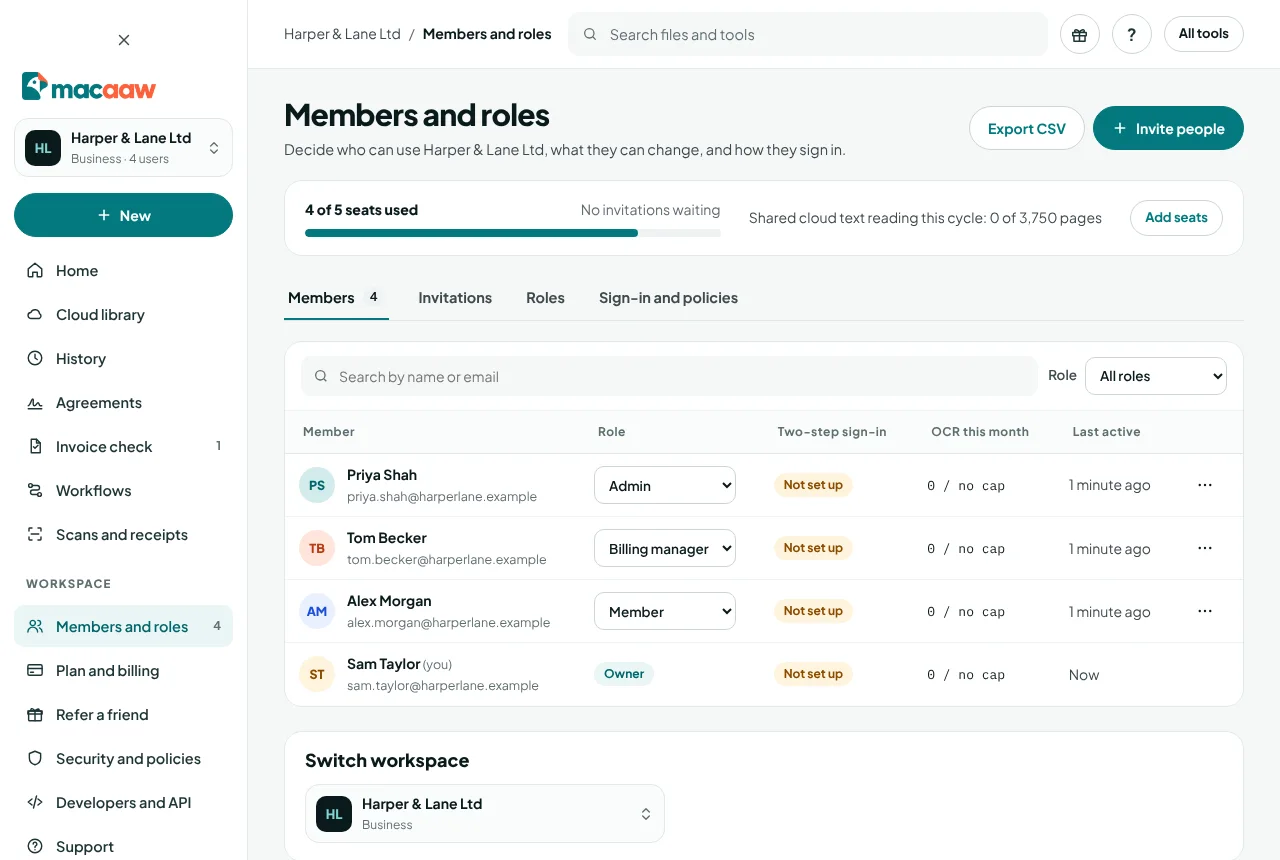
How to switch between workspaces
Use the workspace menu at the top of the sidebar. Personal is your own space; each Business workspace you belong to is listed by name. Everything you do afterwards (tools, history, library, billing) happens in the workspace you chose.
How seats work
- Seats used counts members. Invitations do not use a seat until they are accepted.
- To add seats, the owner or a billing manager chooses Add seats on Members and roles, or uses the seat picker on Plan and billing. Added seats are charged today, pro rata for the rest of the term.
- Removing seats takes effect at renewal. You cannot go below the number of seats in use.
How shared allowances work
Each seat adds its allowance to one pool for the whole workspace:
| Each seat adds a month | |
|---|---|
| Cloud OCR pages | 750 |
| Office conversions | 500 |
| Documents sent for signature | 100 |
| AI questions | 500 |
| AI clean-up pages | 500 |
| Invoice checks | 50 |
| Cloud library storage | 250 GB |
Text messages are 100 a month for the whole workspace, not per seat. The account home shows Shared allowances this month, and owners and admins can set a monthly cap per person on cloud text reading (see Members, roles and policies). When a pool runs out, work continues with the workspace's credits.
How to see the workspace audit log
Owners and admins open Members and roles › Sign-in and policies and scroll to Audit log. It records members, roles, sign-in rules, settings, billing and shared presets, and is kept for 365 days. It never records file contents.
How to hand the workspace to someone else
- The owner opens Members and roles › Members.
- Open the actions for an Admin and choose Make owner, then Send ownership request.
- They get an email with a link to accept. Until they do, you stay the owner; afterwards you become an Admin.
How to leave or delete a workspace
- Leave workspace: any member except the owner can leave. You lose access to the workspace, its shared allowance and its presets; your own job history stays with you.
- Delete workspace: the owner opens Sign-in and policies › Delete the workspace, types the workspace name and confirms. Members lose access at once. The subscription is cancelled at the end of the paid term and shared presets are removed after 30 days.
If something goes wrong
- "Workspace features need a Business plan…" Start the Business plan on Plan and billing.
- "All seats are in use." Add a seat, or remove a member who no longer needs access.
- "Only the owner and admins can see and manage members." Ask one of them if you need a different role.
- I cannot delete my personal account. You own a workspace. Transfer ownership or delete the workspace first.
Frequently asked questions
What is the difference between my personal space and a workspace?
Your personal space has your own plan, files and history. A Business workspace has its own plan, members, shared allowances, presets, library and audit log. You switch between them from the workspace menu.
Does an invitation use a seat?
Only when the person accepts it.
How are allowances shared?
Each seat adds its allowance to one pool that every member uses, for example OCR pages, Office conversions and signature requests. Admins can set a monthly cap per person on cloud text reading.