

Invoice check compares each supplier invoice with its purchase order (PO) and delivery note, line by line. It shows exactly what differs and how much money is at stake, so you only pay for what was ordered and delivered. A person always makes the decision.
Before you start
- Invoice check is part of Business. Each seat includes 50 checks a month, shared by the workspace; after that each check uses 5 credits. Reading the documents costs nothing extra.
- Every role can create and review checks. Approving needs an owner, admin or billing manager (see Rules and approvals).
- Have the invoice, and ideally its purchase order and delivery note, as PDFs, photos or scans.
A worked example
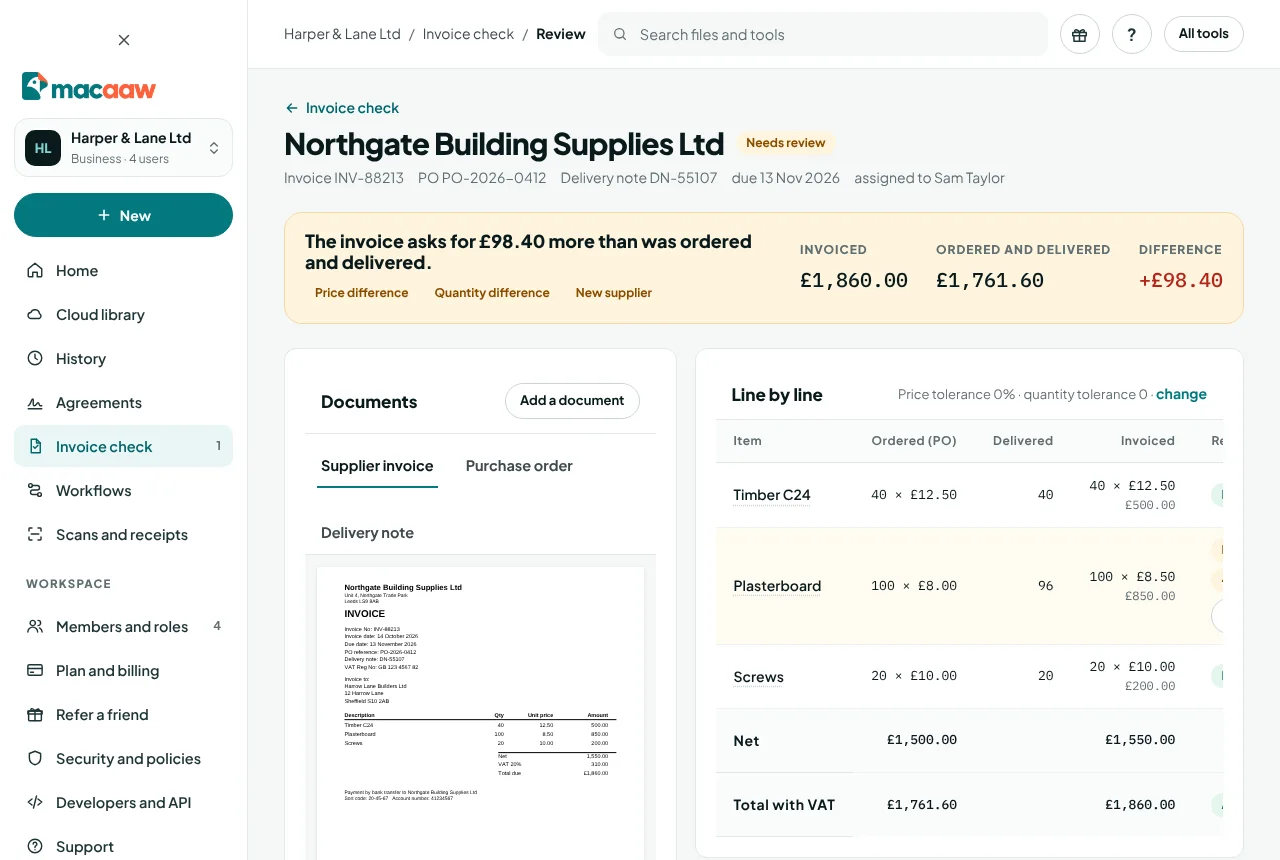
Northgate Building Supplies sends invoice INV-88213 for purchase order PO-2026-0412, delivered on note DN-55107:
| Item | Ordered (PO) | Delivered | Invoiced |
|---|---|---|---|
| Timber C24 | 40 × £12.50 | 40 | 40 × £12.50 |
| Plasterboard | 100 × £8.00 | 96 | 100 × £8.50 |
| Screws | 20 × £10.00 | 20 | 20 × £10.00 |
The invoice asks for £1,860.00. Invoice check finds two problems on the plasterboard: the price is £0.50 more each than ordered (+£50.00), and 4 boards were not delivered (£32.00). With VAT, the invoice asks for £98.40 more than was ordered and delivered. The matched amount is £1,761.60.
How to start a check
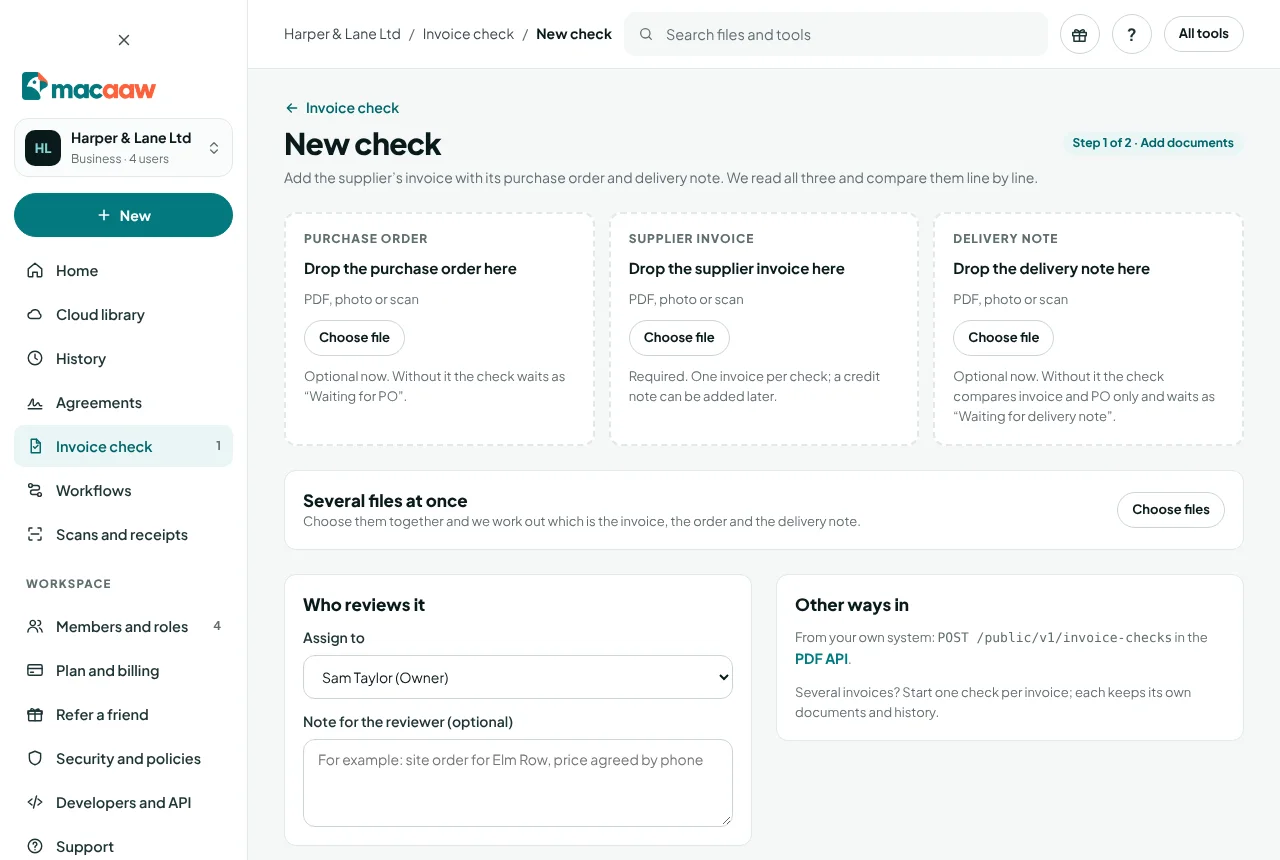
- In the sidebar, choose Invoice check, then New check (or New › Invoice check).
- Drop each document on its box: Drop the supplier invoice here, Drop the purchase order here and Drop the delivery note here. Or, under Several files at once, choose them together and Macaaw works out which is which.
- Only the invoice is required. Without a PO the check waits as Waiting for PO; without a delivery note, as Waiting for delivery note.
- Under Who reviews it, choose a person in Assign to, or leave Anyone in the workspace. Add a Note for the reviewer if helpful.
- Choose Start check. Macaaw uploads and reads the documents, then opens the check.
How to review a check
The review page compares the three documents.
- Read the summary at the top, for example The invoice asks for £98.40 more than was ordered and delivered.
- Look down Line by line. Each line shows the ordered, delivered and invoiced figures and its Result: Match, a price difference, a quantity not delivered, Not on the order or Ordered, not invoiced.
- Choose a line to highlight it on the document, with Show this line on the document.
- Check the list on the right: totals and VAT, duplicates, bank details, new supplier, and your approval limit.
- If the reading got a value wrong, choose Correct a field, pick the field, type the Correct value and choose Save correction. The check is matched again and the correction goes in the audit log.
How to decide
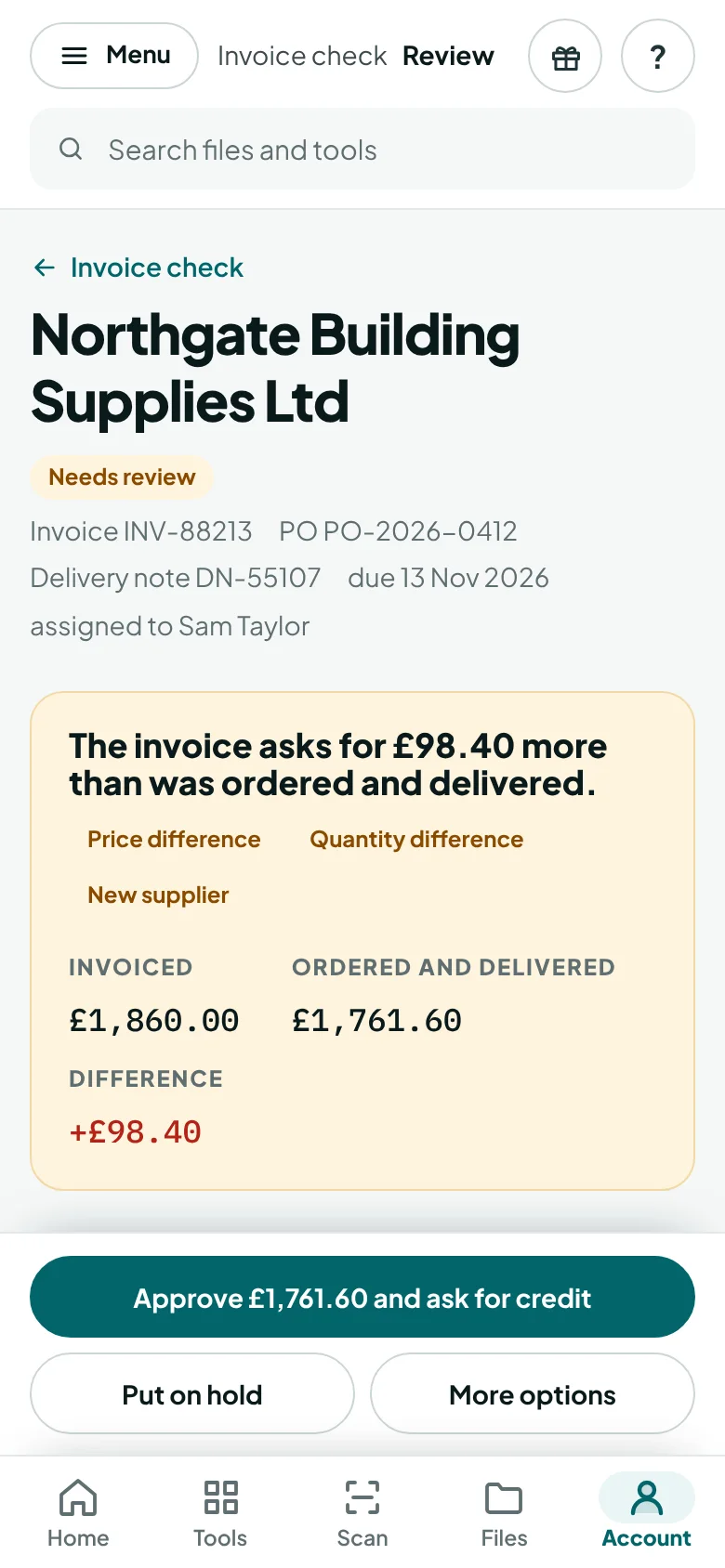
Under What do you want to do?, choose one:
- Approve … and ask for a credit note of … (recommended when the invoice is too high). Macaaw drafts the email to the supplier with the differences. Copy it with Copy text or choose Open in email; the check waits as Waiting for credit note.
- Approve as invoiced pays the full amount. You must give a reason, for example a price agreed by phone.
- Put on hold while you wait for the supplier or the site team. You get a reminder after a few days.
- Reject the invoice when it is not yours or wrong in a way a credit note will not fix. A reason is required.
When everything matches, the only choice needed is Approve the amount.
When the credit note arrives, open the check and choose Add a document to add it, or choose Close without a credit note. The check becomes Approved.
How to export approved checks
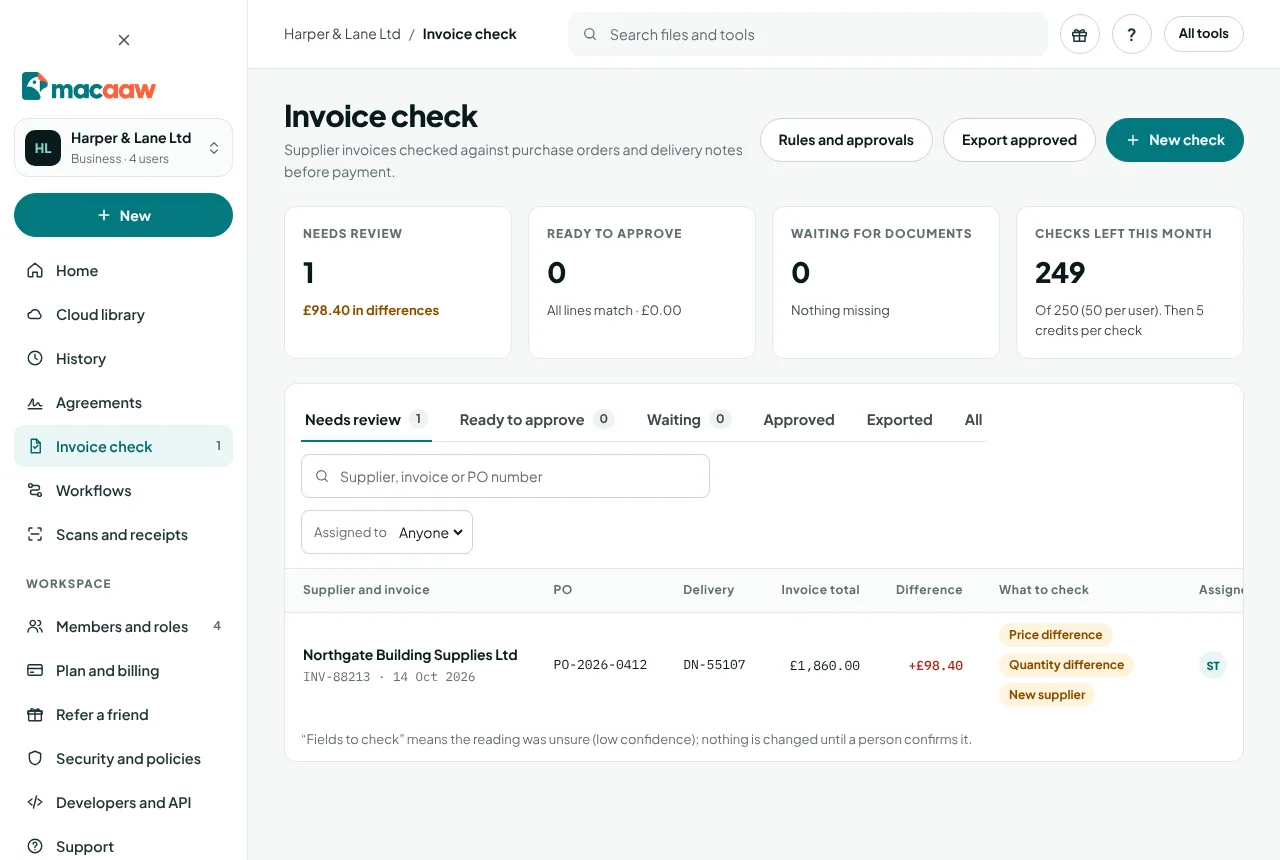
- On the Invoice check inbox, open the Approved tab.
- Choose Export approved. Macaaw downloads a file in your workspace's export format (CSV by default) and moves the checks to Exported.
Finding checks
The inbox tabs are Needs review, Ready to approve, Waiting, Approved, Exported and All. Search by supplier, invoice or PO number, and filter by Assigned to. The cards at the top show how many checks need review, are ready, or are waiting for documents, and Checks left this month.
If something goes wrong
- "Invoice check is part of Macaaw Business." Switch to a Business workspace, or start one.
- "Invoice check is not switched on for this workspace yet." It is being switched on in stages. Please check again soon.
- "A document couldn't be read." Try a clearer scan or the original PDF, and add it again with Add a document.
- "Fields to check" The reading was unsure about some values. Nothing changes until a person confirms or corrects them.
- "This amount is above your approval limit." An admin, billing manager or the owner approves it.
- "Bank details changed" Only the owner can decide, after confirming the new details by phone on a number you already hold.
- "Your workspace's … invoice checks this month have been used." Buy credits on Plan and billing, or wait for the next cycle.
Frequently asked questions
Does Macaaw approve invoices automatically?
No. A person always decides. Checks that match fully wait in Ready to approve for an approver.
Does Macaaw email the supplier for me?
No. It drafts the email asking for a credit note. You copy it or open it in your own email program.
Where are the documents kept?
Encrypted in the workspace's cloud library, in an Invoice check folder, for as long as the Keep documents for rule says (6 years by default).