

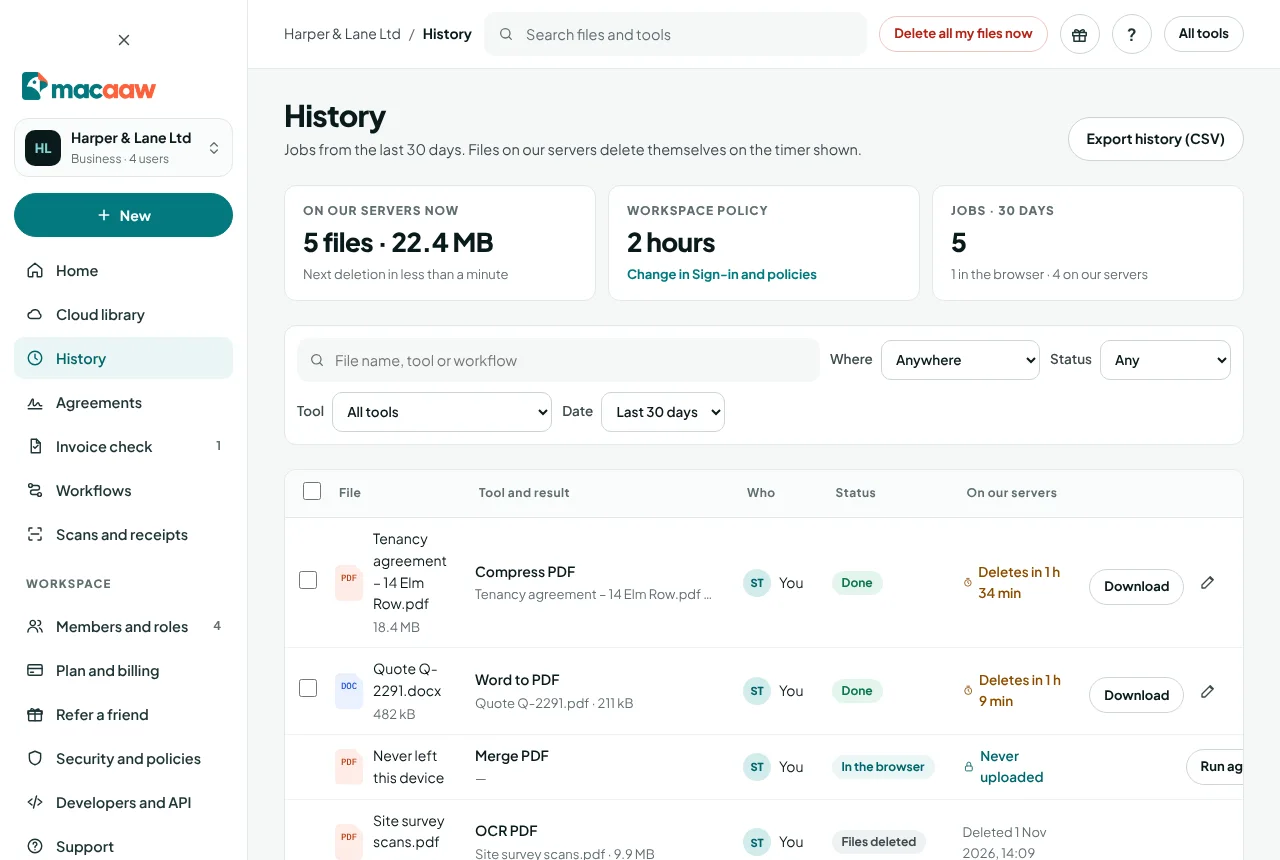
History lists every job you have run in the last 30 days, and shows which files are still on our servers and when each one will be deleted. It is a record, not storage: to keep files, use the cloud library.
Before you start
- You need to be signed in. Jobs you ran as a visitor are not in History.
- Browser-only jobs are listed so you know they happened; their files never reached us, so there is nothing to download or delete.
How to find a job
- In the sidebar, choose History, or type in Search your history at the top of any account screen.
- Search by file name, tool or workflow, or narrow the list with the filters: Where (In the browser or Our servers), Status, Tool and Date.
- In a Business workspace whose owner shares job history, Who shows Only me or Everyone.
- Choose a job to open its details on the right.
How to download or delete a result
- Find the job. Jobs whose files are still stored show a deletion timer, for example Deletes in 1 h 12 min.
- Choose Download to save the result.
- To remove the files now, choose the bin icon (Delete now) and confirm. The job stays in History with the status Files deleted.
To delete everything at once, choose Delete all my files now at the top of History, or Delete all now in Your files on your account home.
How to download several results as a ZIP
- Tick the jobs you want. Only jobs with files still on our servers can be ticked.
- Choose Download as ZIP. Macaaw shows Preparing ZIP with its progress, then saves one ZIP file.
From the same bar you can also choose Delete now for every ticked job.
How to rename a result
- Choose the pencil icon (Rename…) next to a job, or Rename in its details.
- Type the New name and choose Save.
The new name is used when you download the file.
How to run a job again
For a browser-only job, or a job that failed, choose Run again to open the same tool. You add the file again: we did not keep it.
How to export your history
Choose Export history (CSV) at the top of History. The CSV lists your jobs with the tool, status, size and dates. It never contains file contents.
If something goes wrong
- A job shows Failed. Open it to see the reason. Most failures are caused by the file, for example a password or a damaged PDF; see PDF tools. If a job failed because of a problem on our side and used credits, contact support and we refund them.
- A job shows Needs review. A tool that reads data, such as Extract invoice data, was unsure about some fields. Open the result and check them before you export.
- I cannot see a colleague's jobs. Only owners and admins see everyone's jobs, and only when Share job history is on in Sign-in and policies.
Frequently asked questions
How far back does History go?
Jobs from the last 30 days. Job records (tool, file name, size and status) are deleted after 30 days; files are deleted much sooner.
Why can I not download an old job?
Its files have been deleted after the retention time. History keeps the record so you know the job happened. Run the tool again to get a new result.