

This guide takes you through a first day with Macaaw, from creating your account to inviting your team. Each part takes a few minutes. You can stop at any point and pick up again later: the Getting started checklist on your account home remembers what you have done.
Before you start
- You need an email address you can open now, to confirm your account.
- Everything in this guide works on the Free plan, except inviting people, which needs a Business plan (see Choose a plan).
- Macaaw works in any up-to-date browser on a computer, tablet or phone. There is nothing to install, but on a phone you can add Macaaw to your home screen as an app (see Install the Macaaw app).
How to create your account
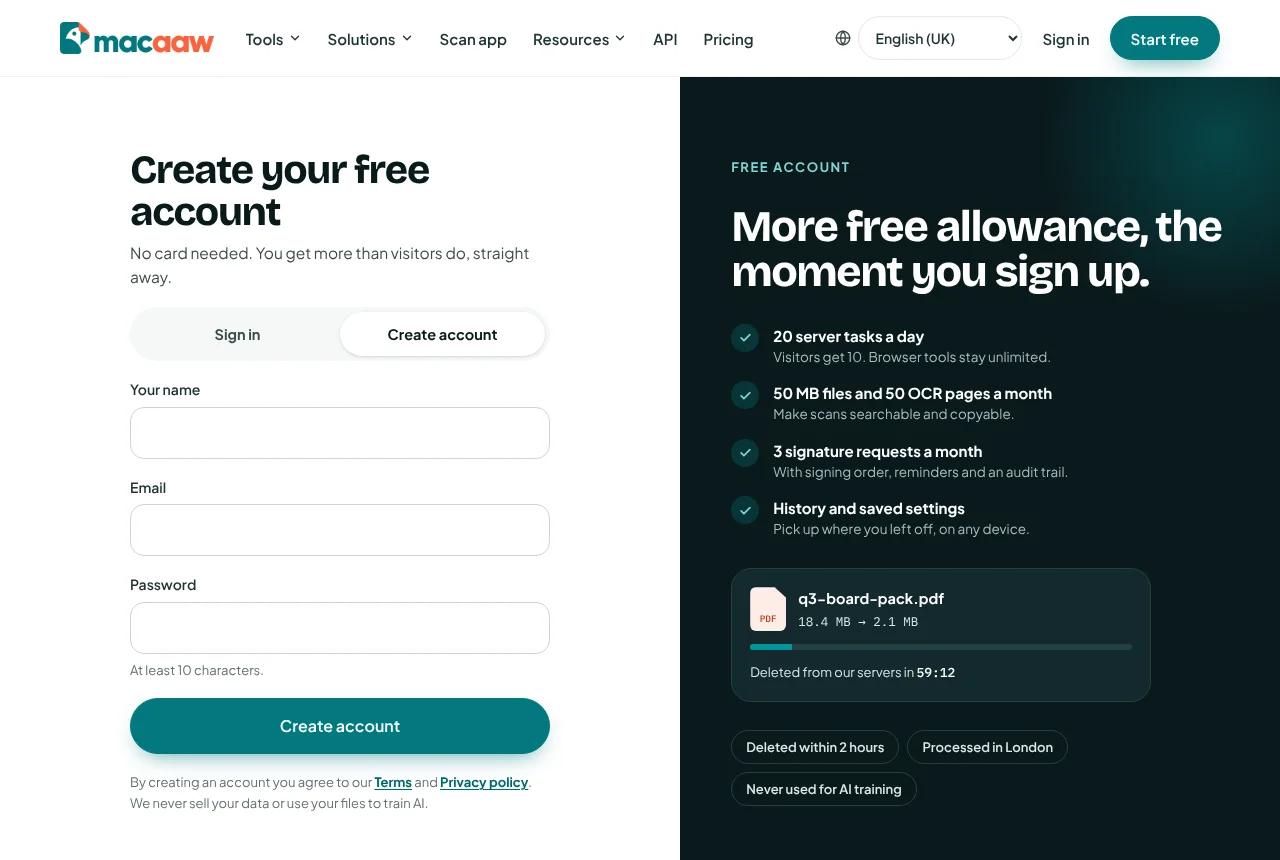
- Go to Create account, or choose Start free at the top of any page.
- Choose Continue with Google or Continue with Microsoft if you want to use that account. Otherwise fill in Your name, Email and Password (at least 10 characters).
- Choose Create account.
You are taken straight to your account home. A free account gives you more than visitors get straight away: 20 server tasks a day instead of 10, and files up to 50 MB instead of 25 MB.
How to confirm your email address
We send an email with the subject Confirm your email for Macaaw as soon as you sign up.
- Open the email and choose the link in it.
- You are signed in and returned to your account home. The yellow banner that says Confirm your email address to unlock checkout and teams. disappears.
Until you confirm, you can use the tools, but you cannot buy a plan, send documents for signature or join a team. If the email has not arrived after a few minutes, choose Resend email in the banner.
A quick look at your account home
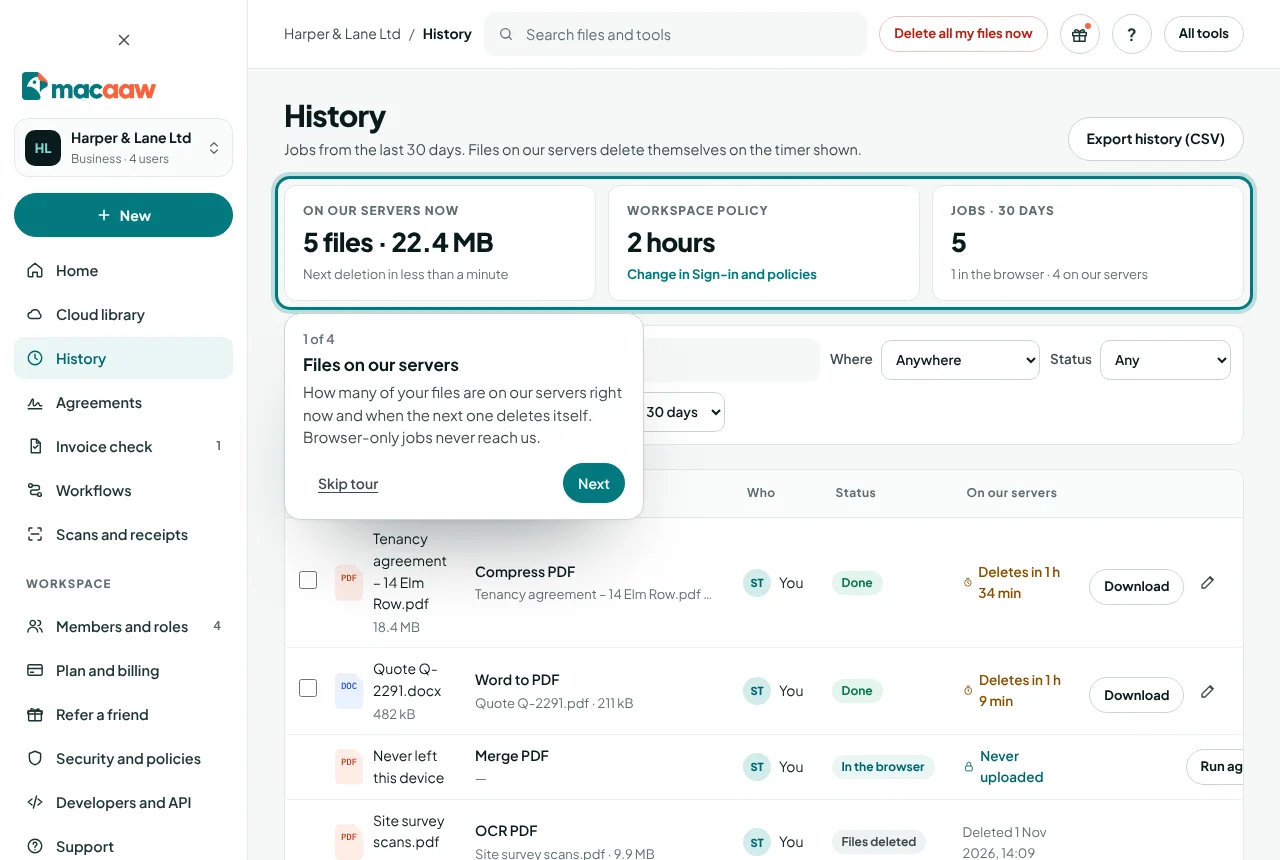
The first time you open your account you see Welcome to Macaaw, with three short points about your plan. Choose Take a 1-minute tour to be shown round the screen. If you choose Not now, the screen tours do not start by themselves; you can still take any tour from the "?" menu.
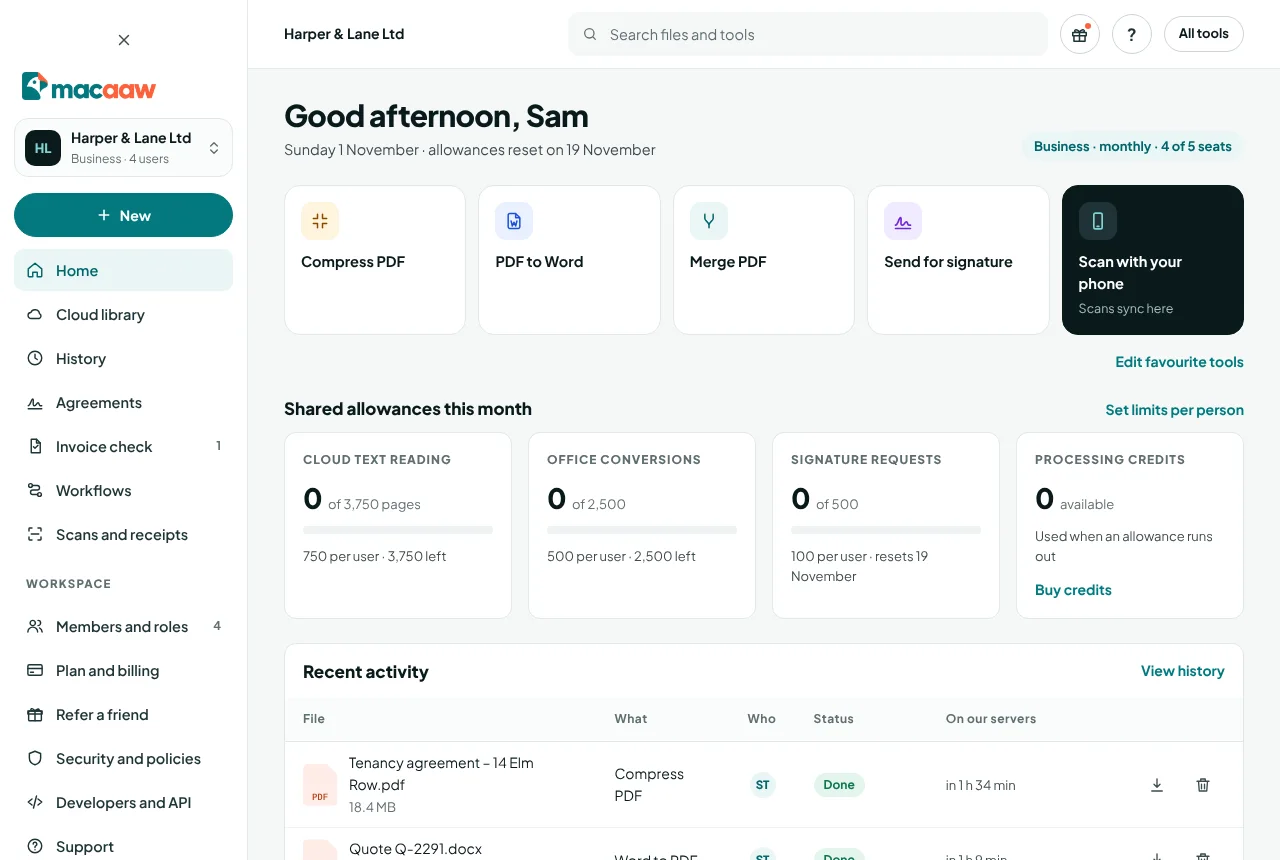
The Getting started card shows how far you have got, for example "3 of 7 done". Each item ticks itself when you have really done it: you never tick anything by hand. The items depend on your account:
- Verify your email address and Run your first PDF tool: everyone.
- Save a file to your cloud library: when the cloud library is available to you.
- Scan a document with Macaaw Scan: ticks when a scan is saved to your cloud library.
- Turn on two-step sign-in: everyone (see Your account and sign-in).
- Invite a member: owners and admins of a Business workspace.
- Send an agreement for signature: when your plan includes signature requests.
- Check your first supplier invoice: Business workspaces with Invoice check.
- Choose a plan: Free users, in their personal workspace.
Choose Hide to put the card away (bring it back with Getting started checklist in the "?" menu), or Learn more in the Help centre to open this guide. When everything is done, the card shrinks to a short "You're all set" line that you can Dismiss.
How to get help on any screen
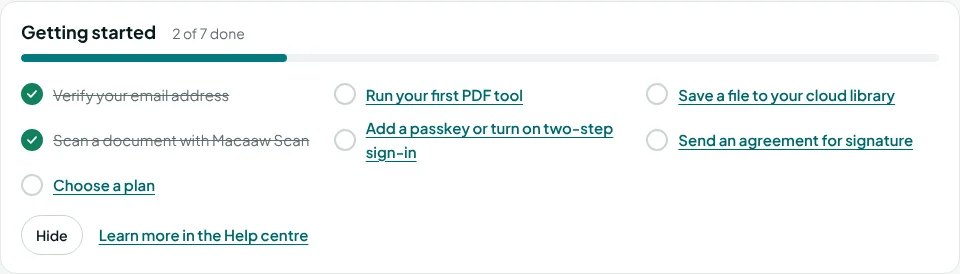
Every account screen has a "?" button (Help) at the top. Its menu holds:
- Take the tour of this screen: a short tour of the screen you are on. Use Next and Back, or Skip tour (or press Esc) to stop.
- Help for this screen: the Help centre article for that screen.
- Getting started checklist: brings back the checklist if you hid it.
- Show all tours again: turns automatic tours back on, so each screen's tour plays once more on your next visit.
- What's new: opens the What's new panel (see below).
- Help centre and Contact support.
Tours start by themselves once, the first time you open each main screen on a computer. Choosing Skip tour or pressing Esc in any tour, or Not now in the welcome, stops automatic tours on every screen until you choose Show all tours again. On a phone tours never start by themselves: open them from the "?" menu. In Macaaw Scan, the "?" menu is at the top of the Library screen.
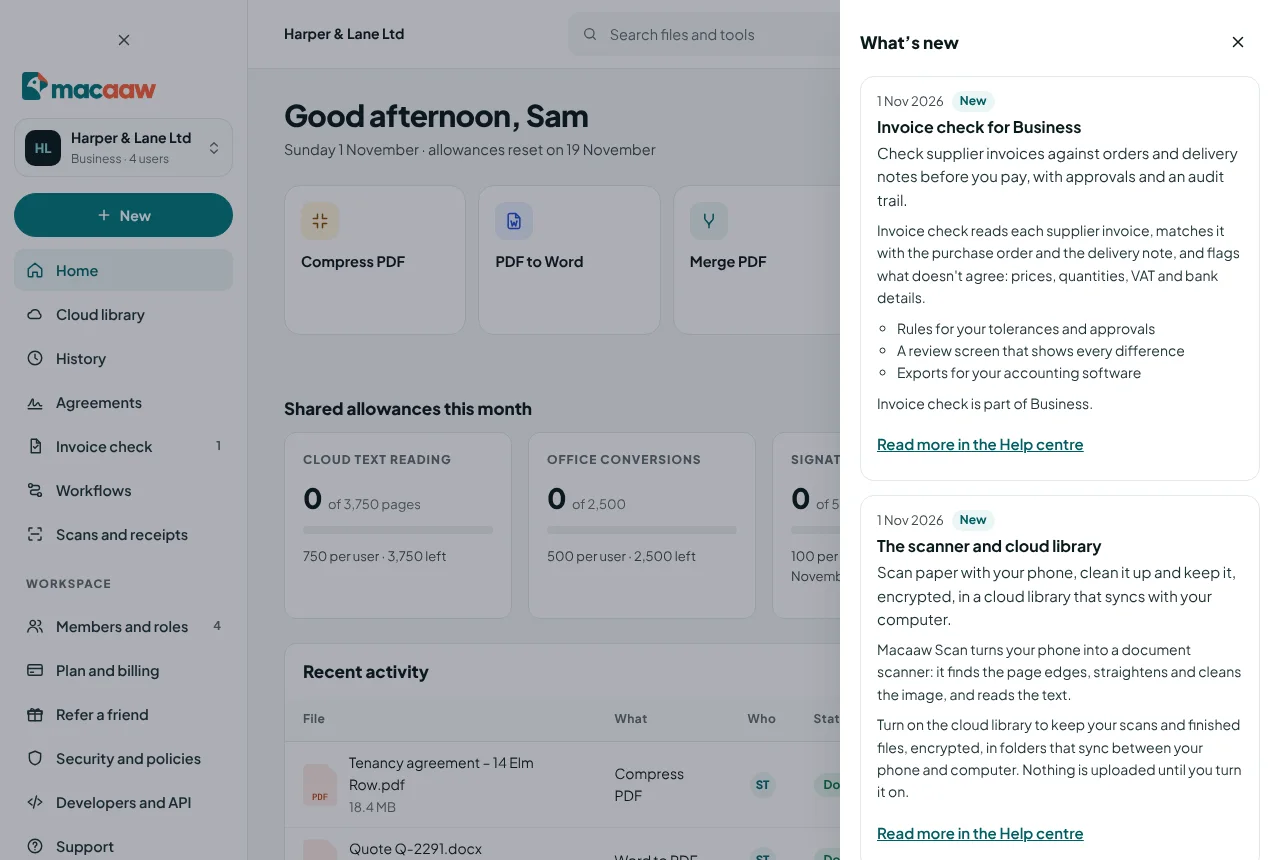
What's new
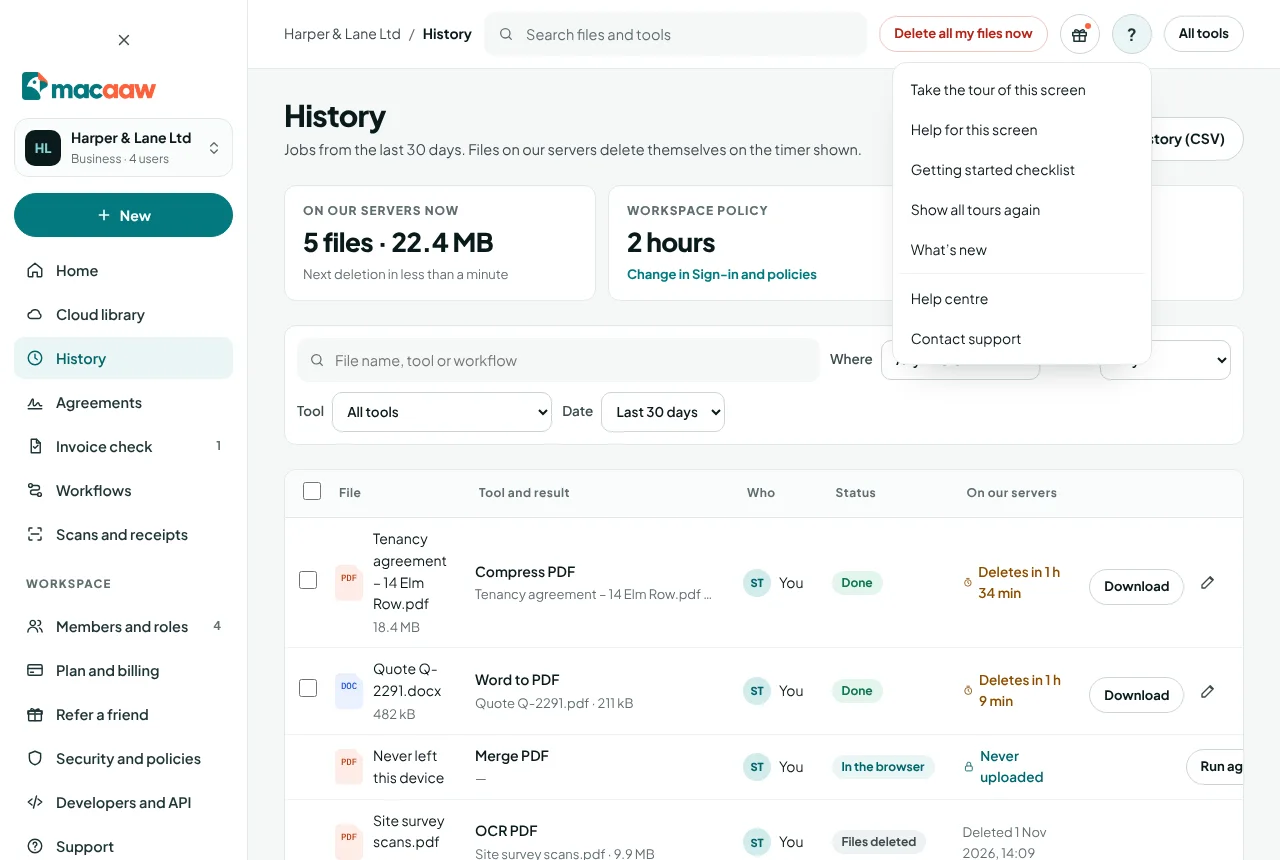
The gift button next to "?" in the account header opens What's new: short notes about new features for your plan, newest first, each with Read more in the Help centre. A dot on the button means something is new since you last looked; opening the panel clears it. See all updates opens the public What's new page, which also has an RSS feed.
Tips by email
In your first weeks we send a few short emails: two days after you sign up, the Getting started steps you haven't done yet; after a week, tips for the tools you use (once you've used one); and on day 3 of a Pro or Business trial, what's included and where to get help. To stop them, use Unsubscribe at the bottom of any of them, or turn off Tips and getting-started emails under Email preferences in Security (see Account and sign-in).
How to run your first tool
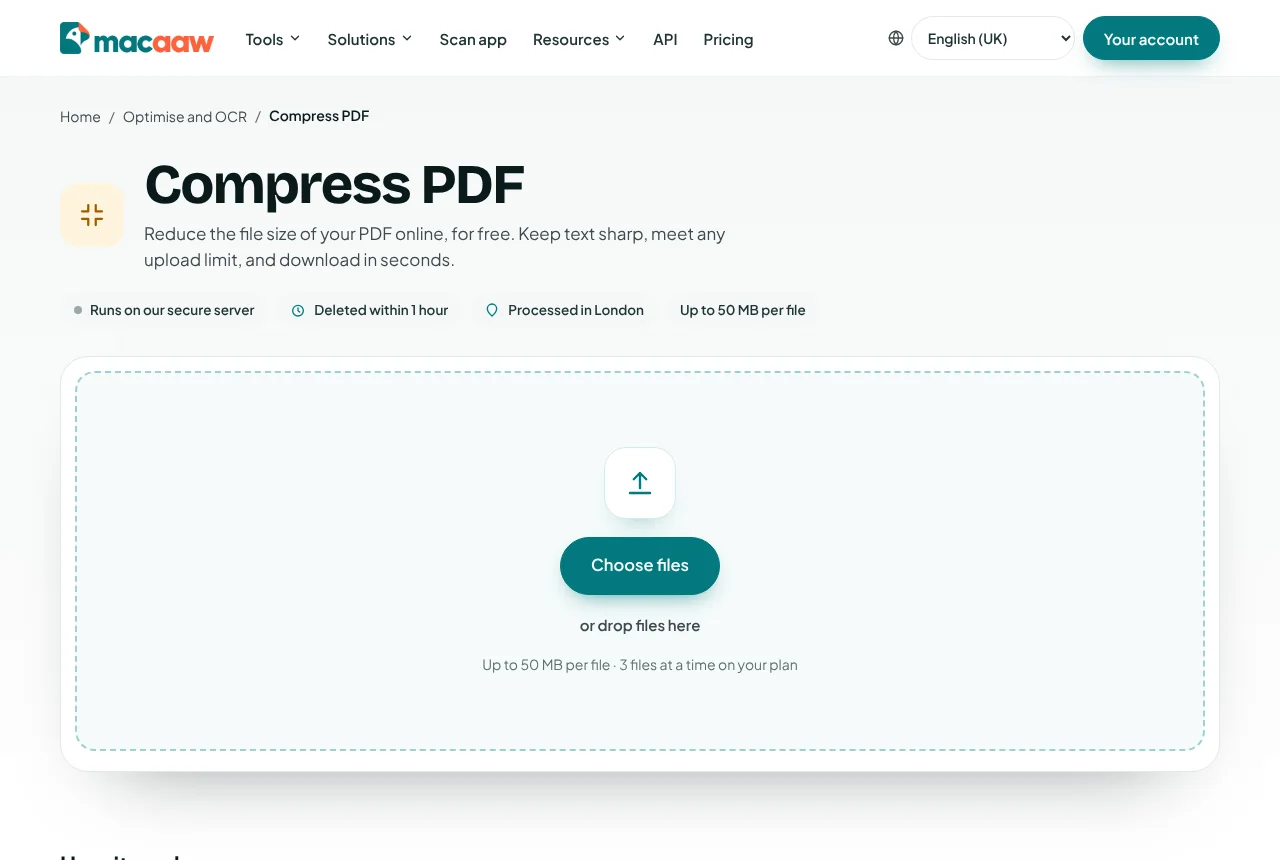
- Choose New, then Run a PDF tool, or pick a tool from the quick actions on your home. For example, choose Compress PDF.
- Choose Choose file, or drag your PDF onto the page.
- Check the settings. For Compress PDF, Recommended suits most files.
- Start the tool. When it has finished, choose Download.
Tools marked Browser only run on your own device and never upload your file. The others run on our servers in London and delete your files automatically: within 1 hour on Free and 2 hours on Pro and Business, or straight away when you choose Delete now. PDF tools explains this in detail.
How to save a file to your cloud library
The cloud library keeps files for as long as you want, encrypted, and syncs them between your devices. It is off until you turn it on.
- In the sidebar, choose Cloud library.
- Tick I want my scans and files kept in the cloud library, then choose Turn on the library.
- Choose Upload and pick the file you downloaded from the tool.
Your Free plan includes 1 GB. Cloud library explains folders, the Bin and sharing in a workspace.
How to scan a document with your phone
- On your phone, open macaaw.com/scan, or choose Scan with your phone on your account home.
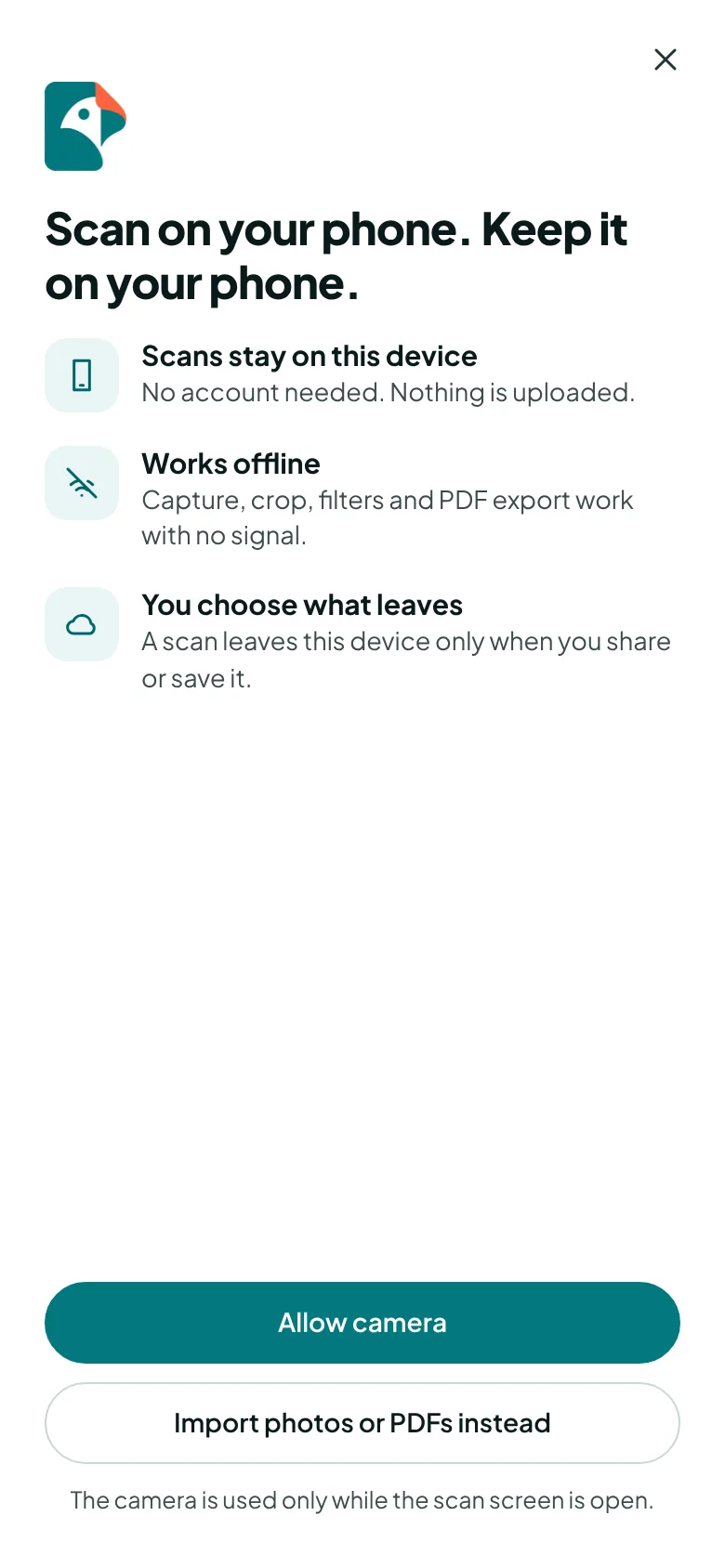
- Choose Allow camera. The camera is used only while the scan screen is open.
- Point the camera at a page. The edges are found for you, and Auto takes the photo when the page is steady. Take more pages if you need to, then choose Done.
- Check the pages, then choose Share to open Export and share. Choose Share… to send the PDF to another app, or Save to this device.
Scans stay on your phone unless you share them or turn on the cloud library. To keep the scanner on your home screen, choose Install when the scanner offers it (on iPhone or iPad, tap Share, then Add to Home Screen). See Scanner.
How to install the Macaaw app on your phone
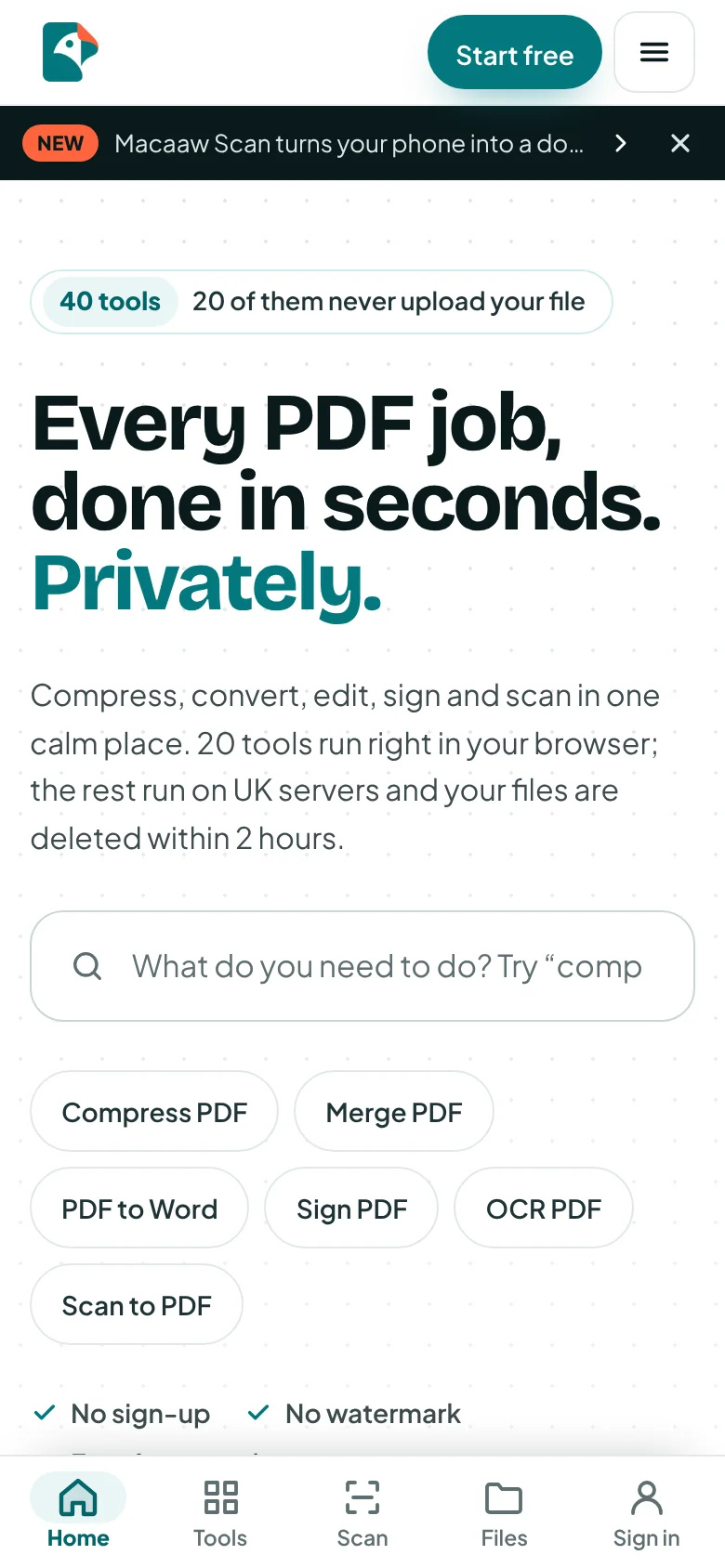
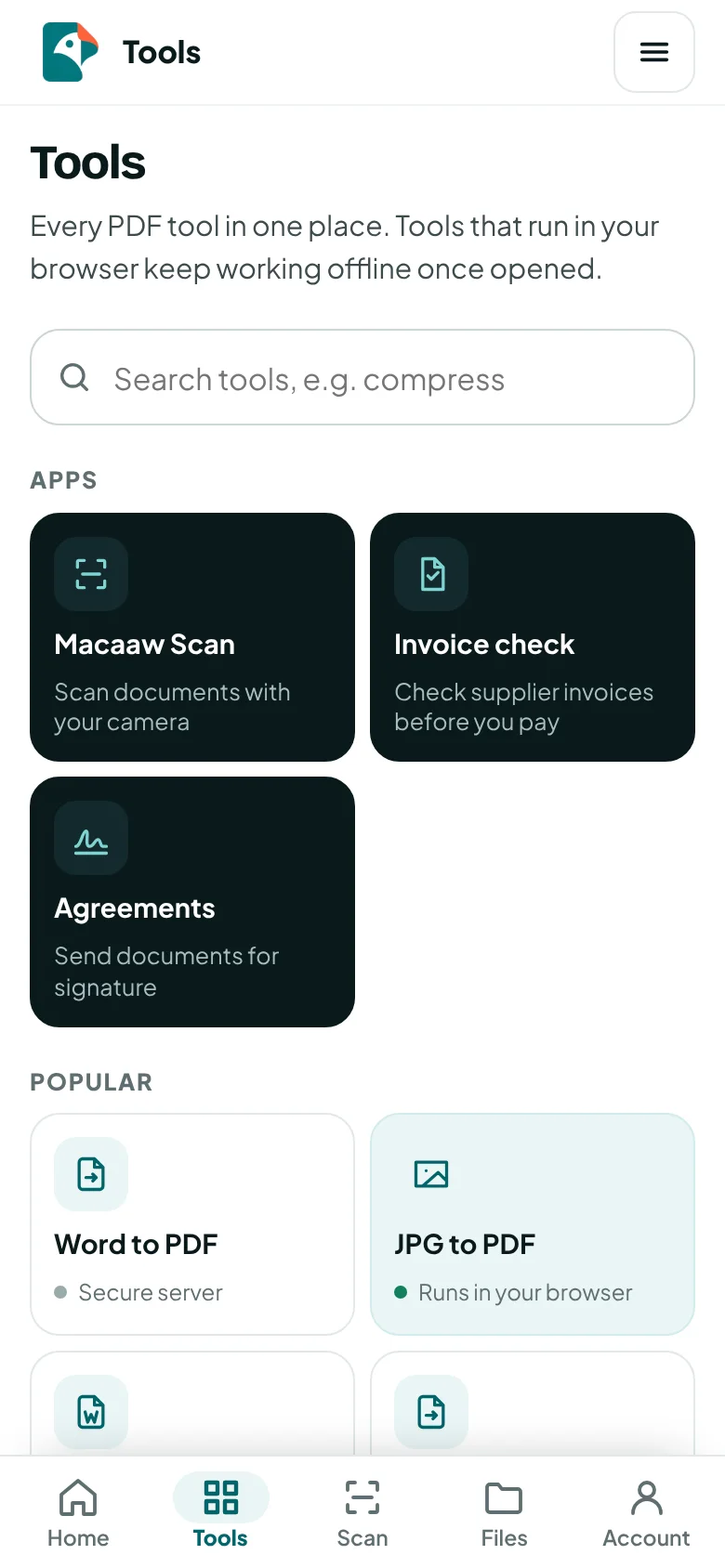
On a phone, Macaaw works like an app: a bar at the bottom takes you to Home, Tools, Scan, Files and Account (or Sign in). You can also add it to your home screen, so it opens full screen from its own icon and the tools that run in your browser keep working without a connection.
On an Android phone (Chrome, Edge or Samsung Internet):
- Open macaaw.com. After your second visit, or once a file is ready, a card says Install Macaaw.
- Choose Install, then confirm. You can also use Install app or Add to Home screen in the browser's menu at any time.
On an iPhone or iPad (Safari):
- Open macaaw.com in Safari.
- Tap the Share button in the toolbar.
- Choose Add to Home Screen, then tap Add.
The app opens in the language you installed it from. Press and hold its icon for shortcuts to Compress PDF, Scan, Invoice check and Account. In the app, use the back arrow at the top left to go back. If you choose Not now on the card, it does not appear again for 90 days.
How to invite a member (Business)
Inviting people needs a Business workspace. If you do not have one yet, see Business workspace to create one and start the free trial.
- Switch to your Business workspace with the workspace menu at the top of the sidebar.
- In the sidebar, choose Members and roles, then Invite people.
- Type or paste their email addresses, choose a role, for example Member – uses tools and shared presets, and add a personal note if you like.
- Choose Send invitations.
Invitations last 7 days. A seat is only used when someone accepts. Members, roles and policies explains each role.
How to choose a plan
- In the sidebar, choose Plan and billing.
- For yourself, choose Pro monthly (£7.99) or Pro yearly (£59.88). For a team, open your Business workspace first and use Start Business for this workspace.
- Pay on the secure Stripe checkout page. You come back to Macaaw, which shows Activating your plan… until the payment is confirmed.
If you have not had a trial before, Pro is free for 14 days and Business for 30 days. Plans, billing and credits compares the plans.
If something goes wrong
- The confirmation email has not arrived. Check your spam or junk folder, then choose Resend email on your account home. Make sure the address shown under Profile and security is correct.
- "You have used your 20 server tasks for today." Browser tools still work. The count starts again tomorrow, or you can move to Pro for unlimited server tools.
- The camera does not start. Your browser has blocked it. Allow the camera for macaaw.com in your browser settings, or choose Import photos or PDFs instead.
- Anything else: see Troubleshooting, or contact support.
Frequently asked questions
Do I need an account to use Macaaw?
No. Every tool works without an account, within the visitor limits. A free account gives you more server tasks a day, bigger files, your history, the cloud library and signature requests.
Does Macaaw add a watermark?
No. Files you make with the PDF tools and the scanner have no watermark on any plan.
Can I come back to the tour later?
Yes. Open the "?" menu at the top of any account screen and choose "Take the tour of this screen" or "Show all tours again".