

Macaaw Scan turns your phone into a document scanner. It finds the edges of the page, straightens it, cleans it up and makes a PDF, all on your phone. It also works on a computer with a webcam, or with photos and PDFs you already have.
Before you start
- Open macaaw.com/scan in your phone's browser. Chrome, Safari, Edge and Firefox all work.
- No account is needed. Signing in adds the cloud library, AI help and receipt reports.
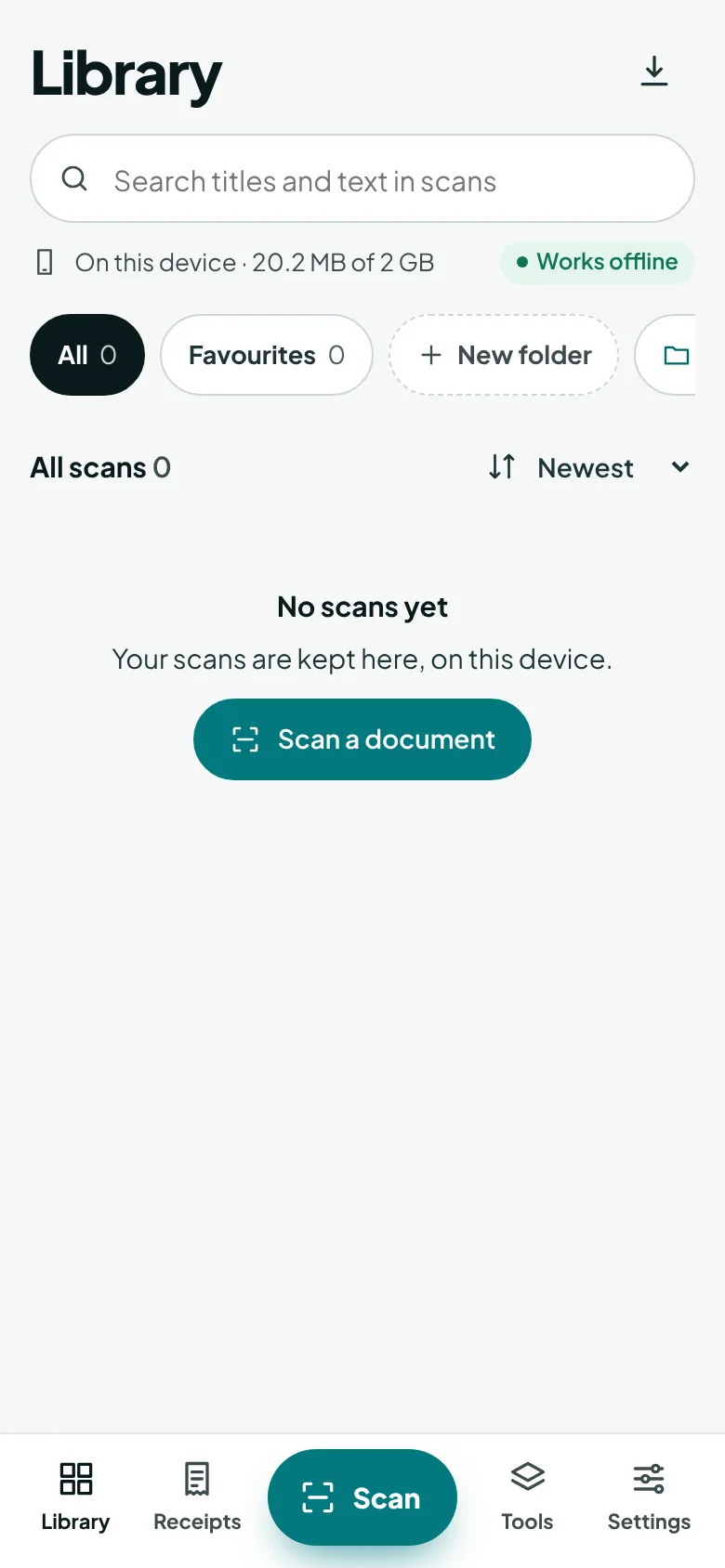
- Scans are kept in your browser's storage on this device. If you clear your browser data, they are removed too.
How to install the scanner
Installing puts the scanner on your home screen, opens it like an app and lets it work offline.
- Open the scanner. When Install Macaaw Scan appears, choose Install.
- On iPhone or iPad, tap Share in Safari, then Add to Home Screen.
You can also install it from Settings › Install.
How to scan a document
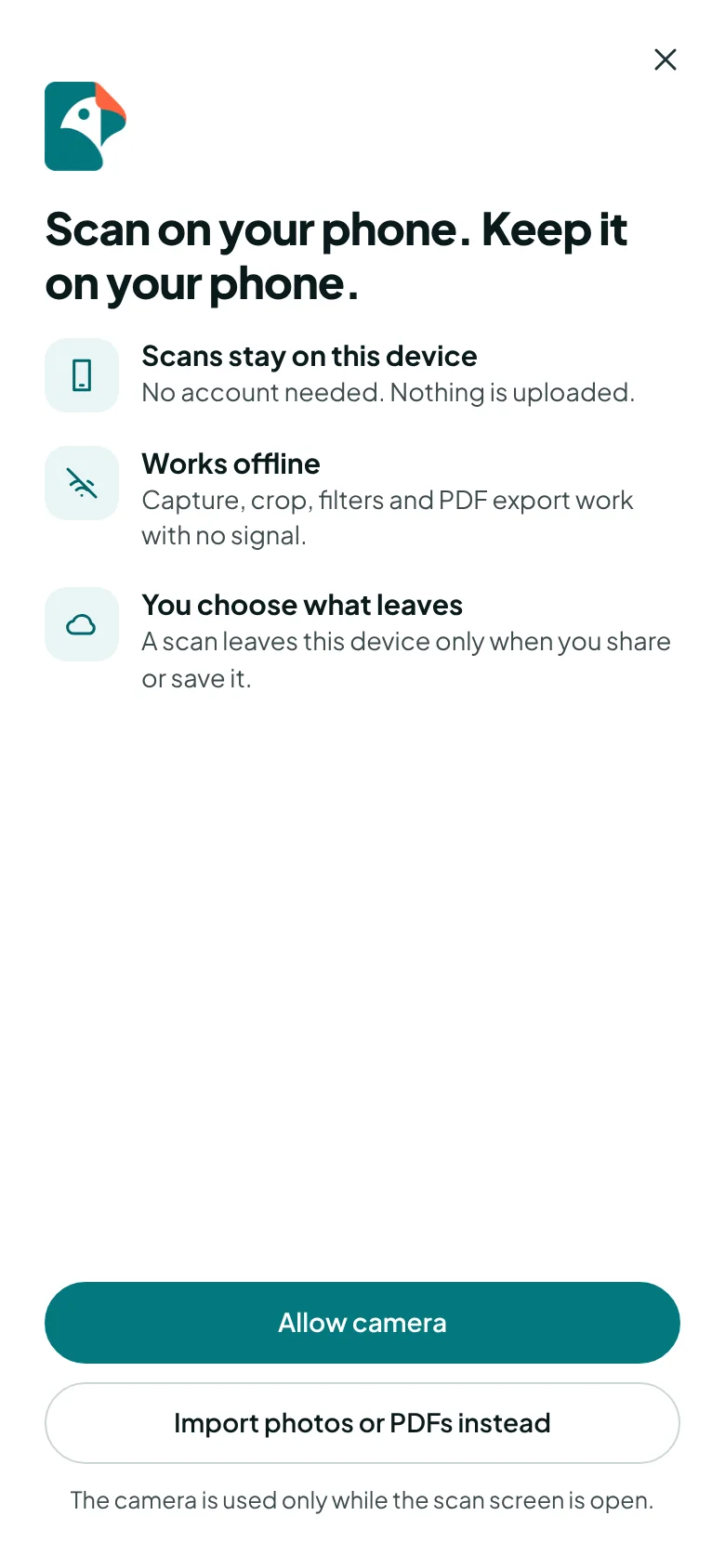
- Choose Scan in the bottom bar (on a computer, in the sidebar). The first time, choose Allow camera.
- Pick a scan mode: Document, Receipt, Whiteboard, Business card or ID card. Each mode suggests the best filter and framing.
- Point the camera at the page. With Auto, the photo is taken when the page is steady; with Manual, tap the shutter. Use Torch in poor light.
- Keep going for more pages: the camera stays open and counts them.
- Choose Done to review the pages.
How to tidy the pages
Open a scan from the Library, then:
- Edit adjusts the crop, straightens the page and changes the filter. Your original photo is kept, so you can undo.
- Organise turns, deletes, duplicates or replaces pages, adds pages, and changes the order (press and hold a page to drag it).
- Text reads the printed text on your device so the PDF can be searched and copied.
- Sign adds your signature, as in Sign PDF.
How to export or share a scan
- Open the scan and choose Share.
- In Export and share, choose the Format (PDF or JPG), the Pages, the Paper size and the Quality and size: Small for email, Balanced, or Best for printing.
- Change the File name if you like.
- Choose Share… to send it to another app, Save to this device, or Email.
The file is made on your phone and nothing is uploaded. On Pro and Business you can also save straight to OneDrive or SharePoint; the file goes from your device to Microsoft and never through Macaaw.
How to sync scans to your cloud library
- Sign in, then open Settings › Cloud library in the scanner.
- Tick I want my scans kept in the cloud library and turn it on.
- Open a scan and choose Sync. When it is done, it shows In the cloud library, and you can open it from Cloud library in your account on any device.
See Cloud library for storage and the Bin.
How to use the PDF tools inside the scanner
Tools lists the PDF tools. Tools that run in the browser, such as Merge, Rotate, Sign and Redact, run inside the scanner and work offline; the result is saved to your Library. Tools that need our servers, such as Compress or OCR PDF, say what will happen and open on macaaw.com with your scan when you choose to continue; the result comes back to your Library.
Features that use our servers
Some features ask before they send anything, because they need our servers in London or our AI provider:
| Feature | What is sent | Included each month |
|---|---|---|
| AI clean-up (curved pages, fingers, eraser, handwriting) | The page image | Free 5 pages, Pro 300, Business 500 per user |
| Ask questions about a scan | The recognised text and your question, never the images | Free 10, Pro 300, Business 500 per user |
| Receipts expense reports | The receipt images, to read merchant, date, total and VAT | Pro and Business; 5 credits a receipt |
Files sent to our servers are deleted within your plan's retention time. Some of these features are being switched on in stages, so you may not see them all yet.
Help inside the scanner
When you are signed in, the "?" button (Help) at the top of the Library screen opens a short tour of the scanner, this article, and Contact support.
If something goes wrong
- The camera does not start. Allow the camera for macaaw.com in your browser's site settings, then reload. Or choose Import photos or PDFs instead.
- "Storage almost full." Your device is low on space. Delete scans you no longer need, or turn off Keep original photos in Settings.
- My scans disappeared. The browser cleared its storage. In Settings, choose Protect from automatic clean-up › Turn on; installing the app usually helps. Turn on the cloud library to keep a copy.
- An unfinished scan is waiting. The scanner keeps it if the page closed by accident: choose Resume in the Library.
Frequently asked questions
Do I need an account to scan?
No. Scanning, editing, reading printed text and exporting all work without an account, on your device, even offline. You sign in only for the cloud library, AI help and receipt reports.
Are my scans uploaded?
No. Scans stay on your device until you share them, save them, or turn on the cloud library. Features that need our servers ask first, every time.
Is there a watermark on scans?
No. Exports have no watermark on any plan.