

Rules and approvals decides when an invoice line counts as a match, who may approve which amounts, and how Invoice check protects you from duplicates and fraud. The rules apply to the whole workspace.
Before you start
- You need to be the owner or an admin to change the rules. Other members can open them read-only.
- Open them from the Invoice check inbox with Rules and approvals.
Who can do what
| Invoice check | Owner | Admin | Billing manager | Member |
|---|---|---|---|---|
| See checks | ✓ | ✓ | ✓ | ✓ |
| Create checks | ✓ | ✓ | ✓ | ✓ |
| Review lines and fix extracted data | ✓ | ✓ | ✓ | ✓ |
| Approve, put on hold or reject | ✓ | ✓ | ✓ | – |
| Change tolerances and approval rules | ✓ | ✓ | – | – |
| Export to CSV | ✓ | ✓ | ✓ | – |
How to set tolerances
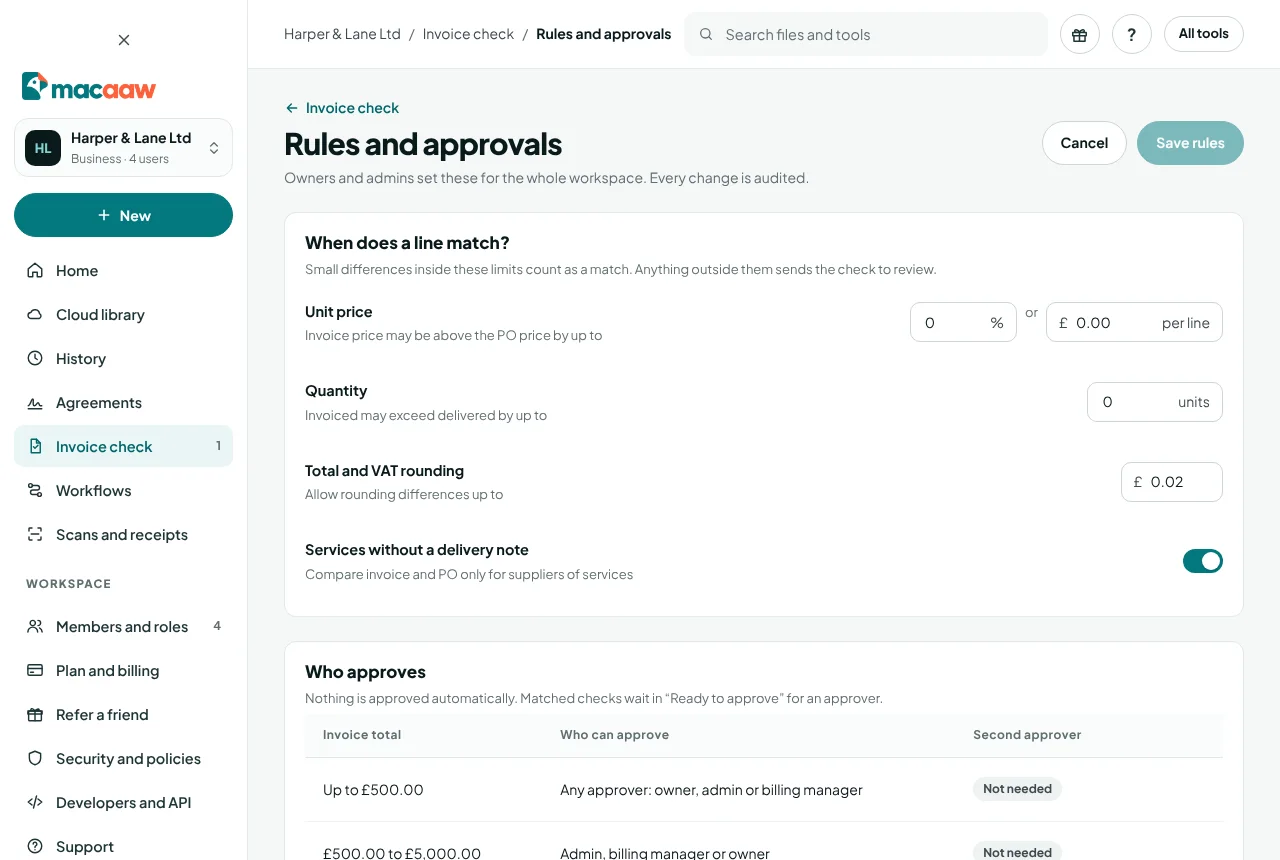
Under When does a line match?:
- Unit price: how much the invoice price may be above the PO price, as a Percent or Pounds per line (the larger of the two applies).
- Quantity: how many Units the invoiced quantity may exceed the delivered quantity by.
- Total and VAT rounding: rounding differences allowed in the totals (default £0.02).
- Services without a delivery note: compare invoice and PO only for suppliers of services, such as labour, fees or hire.
By default the price and quantity tolerances are 0, so any overcharge sends the check to review. A price below the PO, or fewer items invoiced than delivered, always counts as a match.
How to set approval limits
Under Who approves, set two amounts. Nothing is ever approved automatically.
| Invoice total | Who can approve |
|---|---|
| Up to the First limit (default £500) | Any approver: owner, admin or billing manager |
| From the first to the Second limit (default £5,000) | Admin, billing manager or owner |
| Over the second limit | Owner or billing manager, plus a different second approver when Second approver above the second limit is on |
With a second approver, the first approval shows A second approver is needed.; a different approver then chooses Approve as second approver.
How to set fraud and mistake protection
- Duplicate invoices: flag the same supplier with the same number, or the same amount within a number of days (default 90).
- New suppliers: the first invoice from a supplier goes to review even when it matches.
- Changed bank details (always on): if the bank account differs from earlier invoices, only the owner can decide, after confirming the new details by phone on a number you already hold.
- Approving with a difference (always on): approving more than the matched amount always needs a written reason.
How to set reminders, export and retention
- Remind about missing documents after a number of days (default 3). Reminders go to the assigned person, or the person who created the check, for checks on hold or waiting for a PO or delivery note.
- Export format: CSV, one row per invoice, CSV, one row per line or Excel.
- Keep documents for 90 days, 1 year or 6 years (HMRC records). Afterwards the documents are deleted from the cloud library; the audit log keeps who did what, not the files.
Choose Save rules when you are done.
If something goes wrong
- "Can't be less than the first limit." The second limit must be at least the first.
- "… values need fixing before saving." Fields with a problem are marked; fix them and save again.
- "Only the owner and admins can change these rules." You are seeing them read-only.
Frequently asked questions
Who can change the rules?
The workspace owner and admins. Everyone else can see the rules but not change them.
Are rule changes recorded?
Yes. Every change is written to the workspace audit log with who made it.