

Owners and admins decide who can use a Business workspace, what each person can change, and how everyone signs in. Everything is on Members and roles.
Before you start
- You need to be the owner or an admin of the workspace. Other members see their own role and cap only.
- Inviting people uses seats when they accept. See Business workspace.
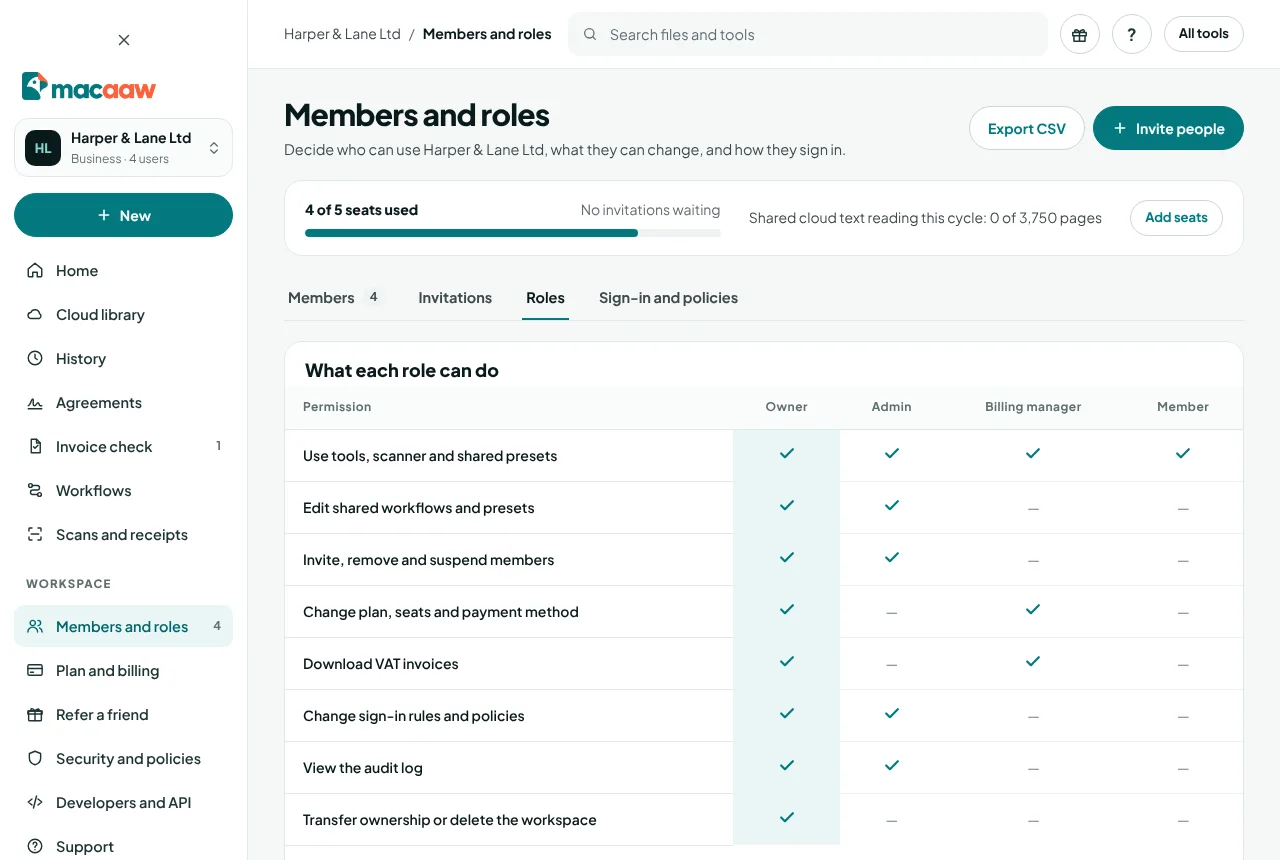
What each role can do
| What they can do | Owner | Admin | Billing manager | Member |
|---|---|---|---|---|
| Use tools and shared presets | ✓ | ✓ | ✓ | ✓ |
| Create and edit shared presets | ✓ | ✓ | – | – |
| Invite and remove members | ✓ | ✓ | – | – |
| Manage billing and seats | ✓ | – | ✓ | – |
| Download VAT invoices | ✓ | – | ✓ | – |
| Change workspace settings and policies | ✓ | ✓ | – | – |
| See the workspace audit log | ✓ | ✓ | – | – |
| Transfer or delete the workspace | ✓ | – | – | – |
Owners, admins and billing managers can also approve invoices in Invoice check; see Invoice check rules and approvals.
How to invite people
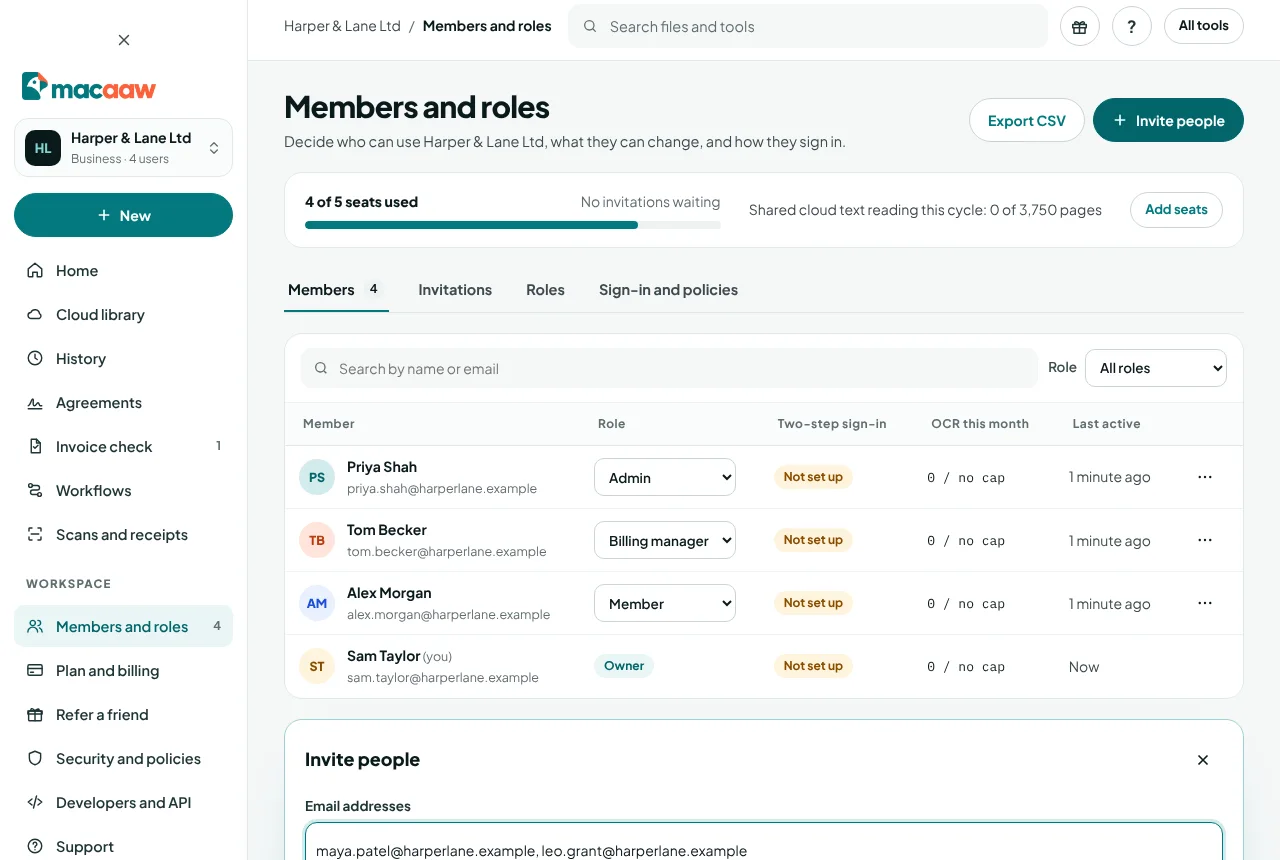
- Open Members and roles and choose Invite people.
- In Email addresses, type or paste up to 50 addresses, separated by commas, spaces or new lines.
- Choose the role: Admin – manages people and settings, Billing manager – plan and invoices or Member – uses tools and shared presets.
- If you like, set a Monthly cap on cloud text reading and add a Personal note.
- Choose Send invitations.
Invitations expire after 7 days. On the Invitations tab you can Resend or Revoke them. If some addresses could not be invited, Macaaw lists them with the reason, for example "already a member" or "all seats are in use".
How people accept an invitation
The person opens the link in their email, signs in or creates an account with the same email address the invitation was sent to, and chooses Accept invitation. They then switch to the workspace from the workspace menu.
How to change a member's role, cap or access
On the Members tab, find the person (use Search members if the list is long), then:
- Role for the person: choose the new role. The change is immediate and audited.
- Set monthly cap: the number of pages of cloud text reading they can use from the shared allowance each cycle. Leave it empty to use the workspace default, then choose Save cap.
- Suspend: they keep their seat and files but cannot use the workspace until you choose Reinstate.
- Remove: they lose access at once and their seat is freed. They keep their own job history; shared presets stay with the workspace.
- Resend email confirmation: for a member whose email is not confirmed yet.
How to set sign-in rules and policies
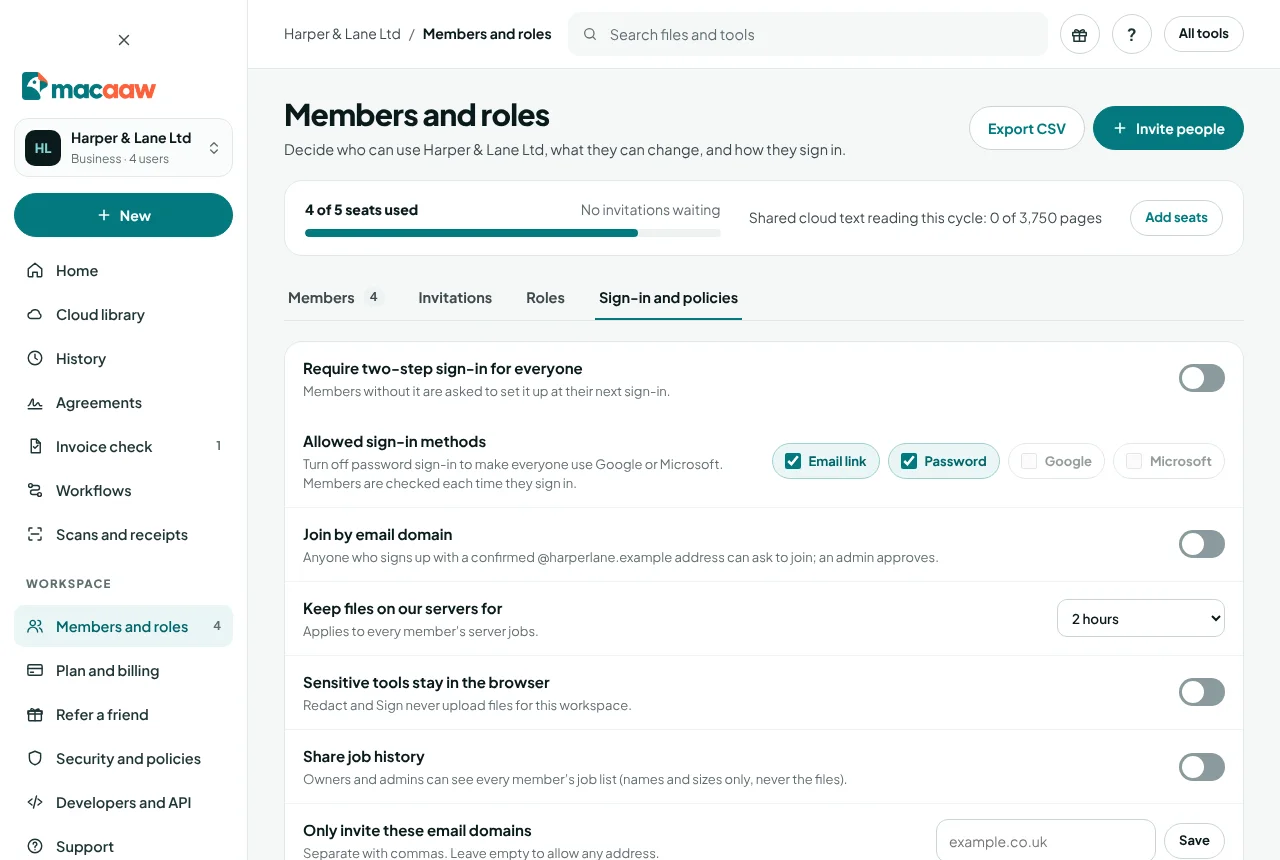
Open the Sign-in and policies tab. Most settings save as soon as you change them.
- Require two-step sign-in for everyone. A passkey or an authenticator app meets the rule. Members with neither are asked to set one up at their next sign-in: until they do, they can use their account settings and see their Getting started list, but not the workspace. They cannot remove their last passkey or turn off their authenticator app while the rule is on.
- Allowed sign-in methods. Choose from Email link, Password, Google and Microsoft. Turning off password sign-in makes everyone use Google or Microsoft. Keep at least one method that is available. Passkeys belong to each person's Macaaw account, so they are accepted whenever Email link or Password is allowed; a workspace that allows only Google or Microsoft does not accept passkeys.
- Join by email domain. People who sign up with a confirmed address on your domain can ask to join, and an admin approves each request. Requests appear on the Members tab with Approve and Decline.
- Keep files on our servers for right after download (Until first download), 30 minutes, 1 hour or 2 hours. It applies to every member's server jobs.
- Sensitive tools stay in the browser. Redact and Sign never upload files for this workspace.
- Share job history. Owners and admins can see every member's job list: names and sizes only, never the files.
- Only invite these email domains, separated by commas, then Save.
- Default monthly cap per member on cloud text reading, then Save.
Single sign-on (SAML) and SCIM are available on Enterprise.
If something goes wrong
- "This invitation was sent to a different email address." The person must sign in with the address the invitation was sent to, or you invite their other address.
- "Free mail domains such as gmail.com cannot be used to join a workspace." Join by domain only works with your organisation's own domain.
- "An owner or admin needs a confirmed email address on that domain first." Confirm an address on the domain before turning on domain join.
- "Keep at least one sign-in method that is available on this site." Turn another method back on first.
- A member says they set up a passkey but still shows as without two-step sign-in. Ask them to reload the page; the Members tab counts a passkey or an authenticator app as two-step sign-in.
- "too many invitations are waiting" Up to 200 invitations can wait at once. Revoke old ones first.
Frequently asked questions
Can I change what a role is allowed to do?
Not at the moment. Roles are fixed, and every change of role is recorded in the workspace audit log.
Can people join with a Gmail address?
They can be invited with any address, unless you limit invitations to your own domains. Join by email domain only works with your organisation's own domain, never with free mail domains.