

Macaaw has 40 PDF tools for converting, organising, editing, compressing, reading text from and protecting PDFs. Every tool page works the same way: add your file, choose the settings, then download the result.
Before you start
- You do not need an account. Visitors can run 10 server tasks a day on files up to 25 MB; a free account raises this to 20 tasks and 50 MB.
- Browser tools are free and unlimited on every plan.
- Three tools are part of Pro and Business: Edit PDF, Compare PDFs and Extract invoice data.
Where each tool runs
Each tool page says where the tool runs:
- In your browser (shown as Browser only in your history): the file is processed on your own device. Nothing is uploaded, so these tools also work for sensitive documents.
- On our UK servers: the file is uploaded over an encrypted connection to our servers in London, processed automatically with no person opening it, and deleted automatically.
Convert to PDF
| Tool | Where it runs | Who can use it |
|---|---|---|
| Word to PDF | On our UK servers | Everyone |
| Excel to PDF | On our UK servers | Everyone |
| PowerPoint to PDF | On our UK servers | Everyone |
| JPG to PDF | In your browser | Everyone |
| Other formats to PDF | On our UK servers | Everyone |
| HTML to PDF | On our UK servers | Everyone |
Convert from PDF
| Tool | Where it runs | Who can use it |
|---|---|---|
| PDF to Word | On our UK servers | Everyone |
| PDF to Excel | On our UK servers | Everyone |
| PDF to PowerPoint | On our UK servers | Everyone |
| PDF to JPG | In your browser | Everyone |
| PDF to PDF/A | On our UK servers | Everyone |
| PDF to Markdown | In your browser | Everyone |
Organise
| Tool | Where it runs | Who can use it |
|---|---|---|
| Merge PDF | In your browser | Everyone |
| Split PDF | In your browser | Everyone |
| Extract pages | In your browser | Everyone |
| Delete pages | In your browser | Everyone |
| Reorder and rotate | In your browser | Everyone |
| Combine double-sided scans | In your browser | Everyone |
| Rotate PDF | In your browser | Everyone |
| Scan to PDF | In your browser | Everyone |
Edit and sign
| Tool | Where it runs | Who can use it |
|---|---|---|
| Edit PDF | On our UK servers | Pro and Business |
| Annotate PDF | In your browser | Everyone |
| Sign PDF | In your browser | Everyone |
| Fill PDF form | In your browser | Everyone |
| Watermark PDF | In your browser | Everyone |
| Add page numbers | In your browser | Everyone |
| Crop and resize | In your browser | Everyone |
| Pages per sheet | In your browser | Everyone |
Optimise and OCR
| Tool | Where it runs | Who can use it |
|---|---|---|
| Compress PDF | On our UK servers | Everyone |
| Compress to a size | On our UK servers | Everyone |
| OCR PDF | On our UK servers | Everyone |
| Scan to Word or Excel | On our UK servers | Everyone |
| Extract tables | On our UK servers | Everyone |
| Extract invoice data | On our UK servers | Pro and Business |
| Repair PDF | On our UK servers | Everyone |
Security
| Tool | Where it runs | Who can use it |
|---|---|---|
| Protect PDF | On our UK servers | Everyone |
| Unlock PDF | On our UK servers | Everyone |
| Redact PDF | In your browser | Everyone |
| Remove metadata | In your browser | Everyone |
| Compare PDFs | On our UK servers | Pro and Business |
How to run a tool
- Open the tool, for example from Tools at the top of any page, New › Run a PDF tool in your account, or a quick action on your account home.
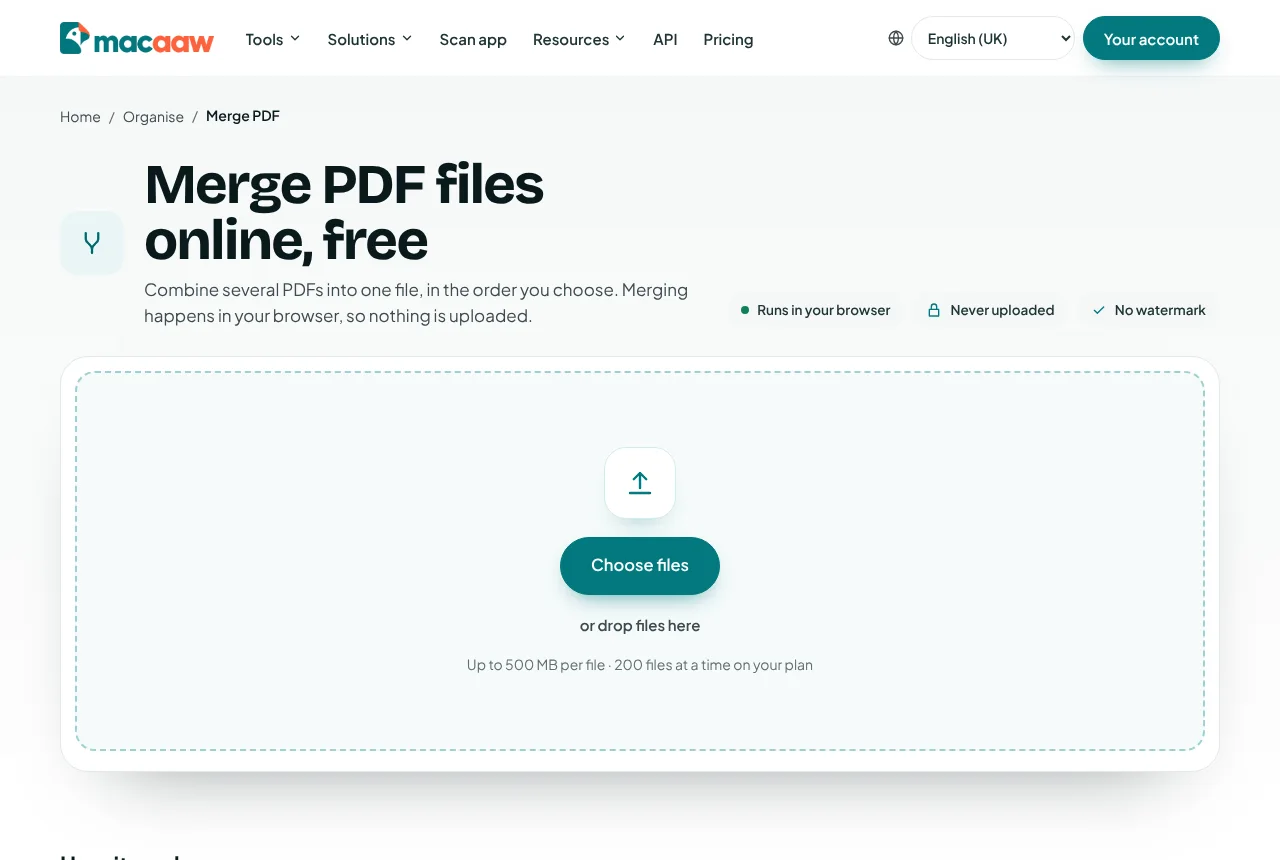
- Choose Choose file (or Choose files), or drag files onto the page. For tools that combine files, such as Merge PDF, use the arrow buttons or drag to change the order.
- Check the settings. Each tool starts with the setting that suits most files.
- Start the tool. Server tools show Waiting in the queue, then Working on it; browser tools show Processing on your device.
- When it has finished, choose Download (or Download all for several files).
How to continue with the same file
After a tool finishes, Continue with this file lists the tools that can take the result next, for example Compress after Merge. The file is passed on without uploading it again. If you do the same steps often, choose Save as workflow to run them all in one go next time (see Workflows).
How to delete your files straight away
Server tools keep the original and the result for a short time so you can download them:
| Plan | Files deleted after |
|---|---|
| Free | 1 hour |
| Pro | 2 hours |
| Business | The workspace setting, from right after download to 2 hours |
To delete them sooner, choose Delete now on the result page, or in History.
Limits on each plan
| Visitor | Free account | Pro | Business | |
|---|---|---|---|---|
| Largest file | 25 MB | 50 MB | 500 MB | 500 MB |
| Files in one server task | 3 | 3 | 50 | 200 |
| Files in one browser task | 25 | 25 | 100 | 200 |
| Server tasks a day | 10 | 20 | Unlimited (fair use) | Unlimited (fair use) |
| OCR pages a month | 20 | 50 | 500 | 750 per user |
| Office conversions a month | 10 | 10 | 300 | 500 per user |
A PDF can have up to 2,000 pages. On Pro and Business, when a monthly allowance runs out, tools keep working by using credits.
If something goes wrong
- "This PDF needs a password to open." Use Unlock PDF first, then try again.
- "This PDF has no text to convert; it is probably a scan." Run OCR PDF first, then convert.
- "This file type is not supported by this tool." Check the Accepts line on the tool page for the file types it takes.
- "Files can be up to … MB on your plan." Compress the file in a browser tool first, split it, or move to a plan with bigger files.
- "This form uses XFA, which cannot be filled here." Some government forms use an old Adobe format. Open them in Adobe Reader.
- "These files have been deleted." The download link has expired after the deletion time. Run the tool again.
- More fixes are in Troubleshooting.
Frequently asked questions
Are my files uploaded?
Only for tools that run on our servers, which are marked as such on each tool page. Browser tools work on your device and never upload anything.
How long do you keep my files?
Files on our servers are deleted automatically within 1 hour on Free and 2 hours on Pro and Business, or straight away when you choose Delete now.
Why is a tool marked Pro?
Edit PDF, Compare PDFs and Extract invoice data use more processing. They are included in Pro and Business, and Pro has a free trial.